

This use case applies Export PDF with QR to a drawing so a paper or PDF viewer can return to the source document in Autodesk Forma.
1. Select the correct Forma PDF
Pick the file from a folder or use its Forma file URL. URL mode verifies that the link belongs to the selected project and points to a PDF.
2. Keep the QR clear of drawing information
Use placement preview to choose a corner. If the title block, notes, or revision marks occupy that area, change corner or margin rather than covering drawing content.
Larger QR sizes are easier to scan but use more page space. Current size options are about 17, 25, 34, and 45 mm.
3. Decide whether every page needs a QR
For multi-page drawings, Stamp QR on every page repeats the QR. Leave it off when a single entry point is sufficient.
4. Download and test the result
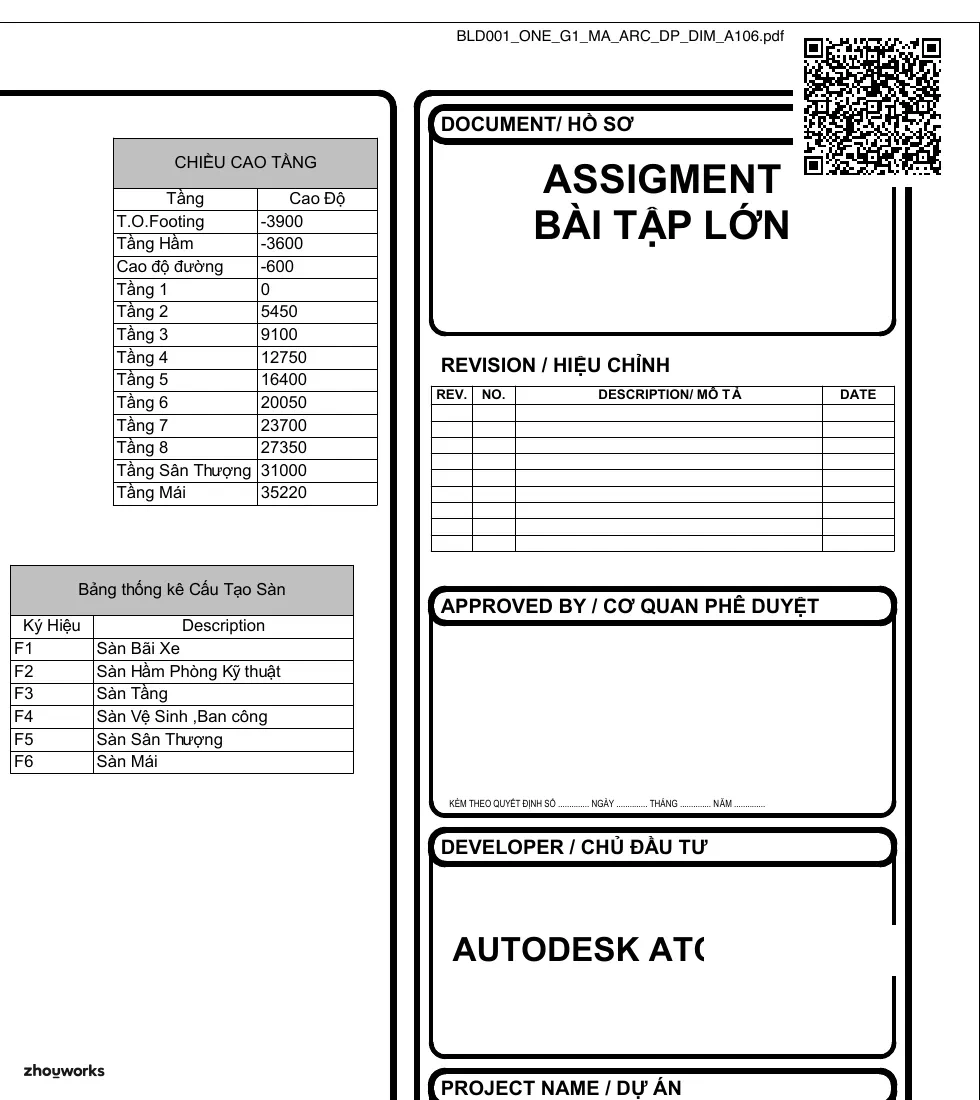
Rendered from the _QR.pdf file created and downloaded by Flowzito during this test.
Flowzito downloads a _QR.pdf file. Open the final PDF, scan the QR, and test the clickable link before issuing it.
Flowzito does not upload the QR version back to Forma. Upload it manually if your document workflow requires a cloud copy. The QR does not change document permissions; the person scanning it still needs Autodesk access to the file.
See Create a PDF with QR for the complete source and settings workflow.