

When a PDF needs a path back to its source document in Autodesk Forma, Flowzito Export PDF with QR creates a local copy containing a QR code and clickable link.
Quick read
- Source: Pick from folder or Paste Forma file URL.
- Select up to 5 PDFs per run.
- Choose among four corners, four QR sizes, and four margins.
- Filename caption and stamp-every-page are optional.
- Create and download PDF saves the result locally; Flowzito does not upload it back to Forma.
1. Select the PDF source
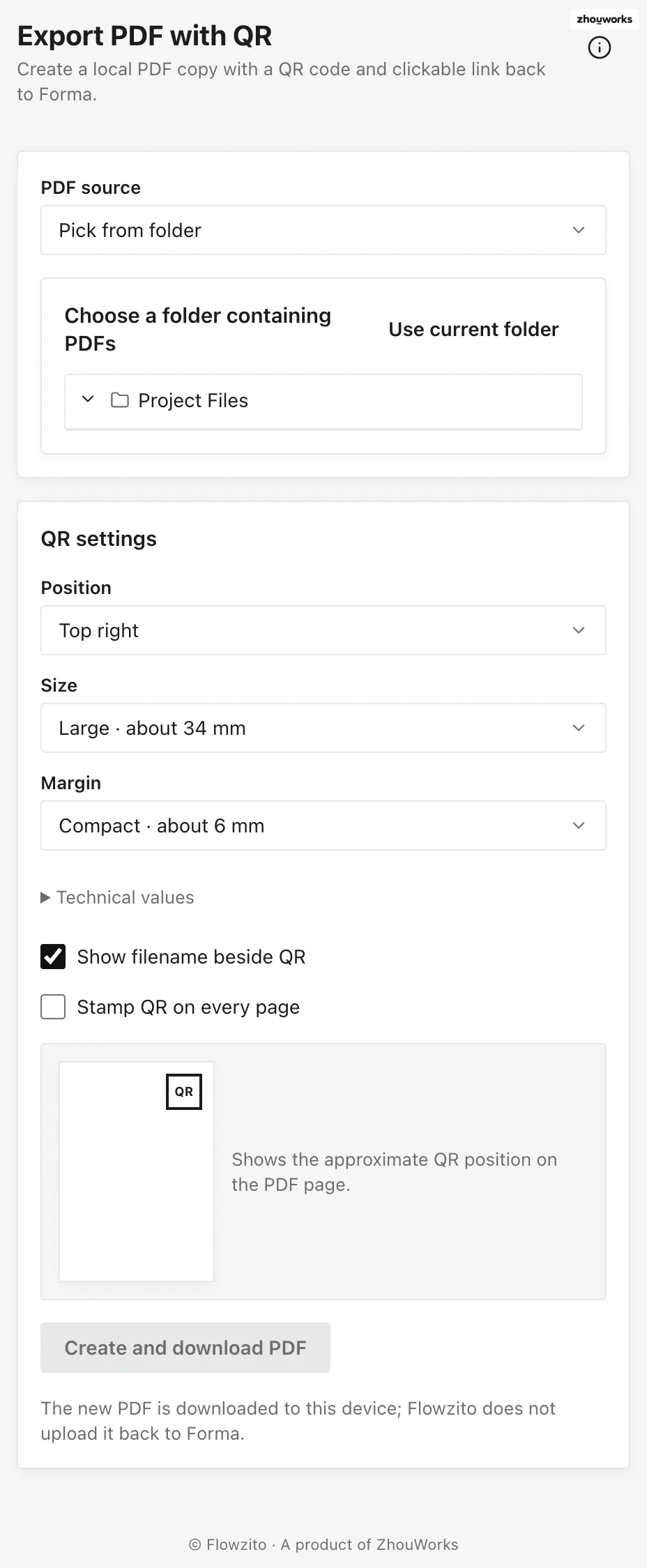
Choose the PDF source before configuring QR position, size, and margin.
For a folder source, browse to the folder and select the PDFs. For URL source, paste a Forma file URL and choose Check URL; it must belong to the selected project and resolve to a valid PDF.
2. Configure the QR
Position can be Top right, Top left, Bottom right, or Bottom left. Size options are about 17, 25, 34, or 45 mm; margin options are about 3, 6, 8, or 11 mm.
Enable Show filename beside QR when useful. Enable Stamp QR on every page only when every page needs the mark.
3. Review placement
The preview shows approximate QR placement on the page. It is a positioning aid, not a full final-PDF renderer.
4. Create and download

Runtime result: 1 file downloaded and 0 failed.
Choose Create and download PDF. The result is downloaded as a _QR.pdf file. Open it to verify the QR and link before distributing it or uploading it to Forma manually.
The QR link does not grant Autodesk access. Anyone who scans it still needs to sign in and have permission to view the file in the project.