

When Autodesk Forma dashboard data is missing or stale, distinguish downloading an existing completed Data Connector sync job from creating a new data request. Flowzito supports both steps in the sync workflow.
1. Confirm the project
Recheck Hub · Project in Flowzito. Dashboard data is stored separately by account, Hub, project, and region.
2. Download an existing sync job
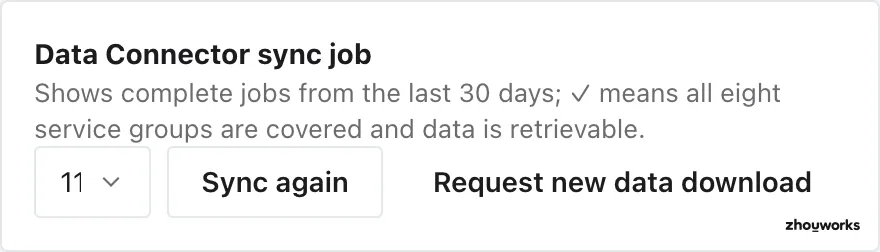
A completed job can be selected to sync its data again.
Open Dashboard. Under Data Connector sync job, select a suitable job. Flowzito lists recent completed jobs whose data can be used by the Dashboard.
Choose Download when no local snapshot exists. If a snapshot is already saved and you want to fetch data again, the action becomes Sync again. During the download, Flowzito can show Checking job, Reading data listing, Downloading data, and Parsing data.
When the sync finishes, Synced shows the timestamp of the saved snapshot. That snapshot can be reopened later without an active Autodesk session.
3. Create fresh data when no suitable job exists
If the available jobs are too old or none is usable, choose Create Dashboard data request. Flowzito opens Review data request, shows how many data groups will be requested, and warns that the action uses Data Connector quota.
Choose Continue to confirmation, recheck the Hub/Project, and confirm. This sends a new request to Autodesk; do not repeat it merely to refresh the interface. After Autodesk completes the request and the new job appears, select that job and download it.
4. If no data appears
If Flowzito cannot list jobs or reports an access error, check the Autodesk session and Data Connector access first. That is different from a valid downloaded dataset containing no records.
See Flowzito Dashboard for snapshot behavior and Filter and drill down in Flowzito Dashboard for analysis steps.