

When a Copy or Import operation on Autodesk Forma stops partway through, do not rerun it immediately. First use Flowzito Jobs and history to determine what finished and which action is required next.
1. Open Jobs and history
Find the project job and inspect its state:
- Paused: restore the session/project, then use Continue when that action appears.
- Needs attention: use Review issue to see which step cannot be confirmed.
- Error: read the failure and inspect the project’s existing data before building a new preview.
2. Restore session and project context
Wait for Autodesk session active and recheck Hub · Project. Do not continue while Flowzito is on a different project.
3. Continue only with valid continuation state
When Continue is available, Flowzito checks the current project state before moving to the next step. If the job becomes Needs attention, stop and review it instead of forcing progress.
4. Build a fresh preview when necessary
If the job no longer has a suitable Continue action, return to the tool and build a fresh Preview. For Copy, inspect the files/folders already present at the destination. For Import, read the result XLSX and Issues so completed work is not repeated.
5. Verify after recovery
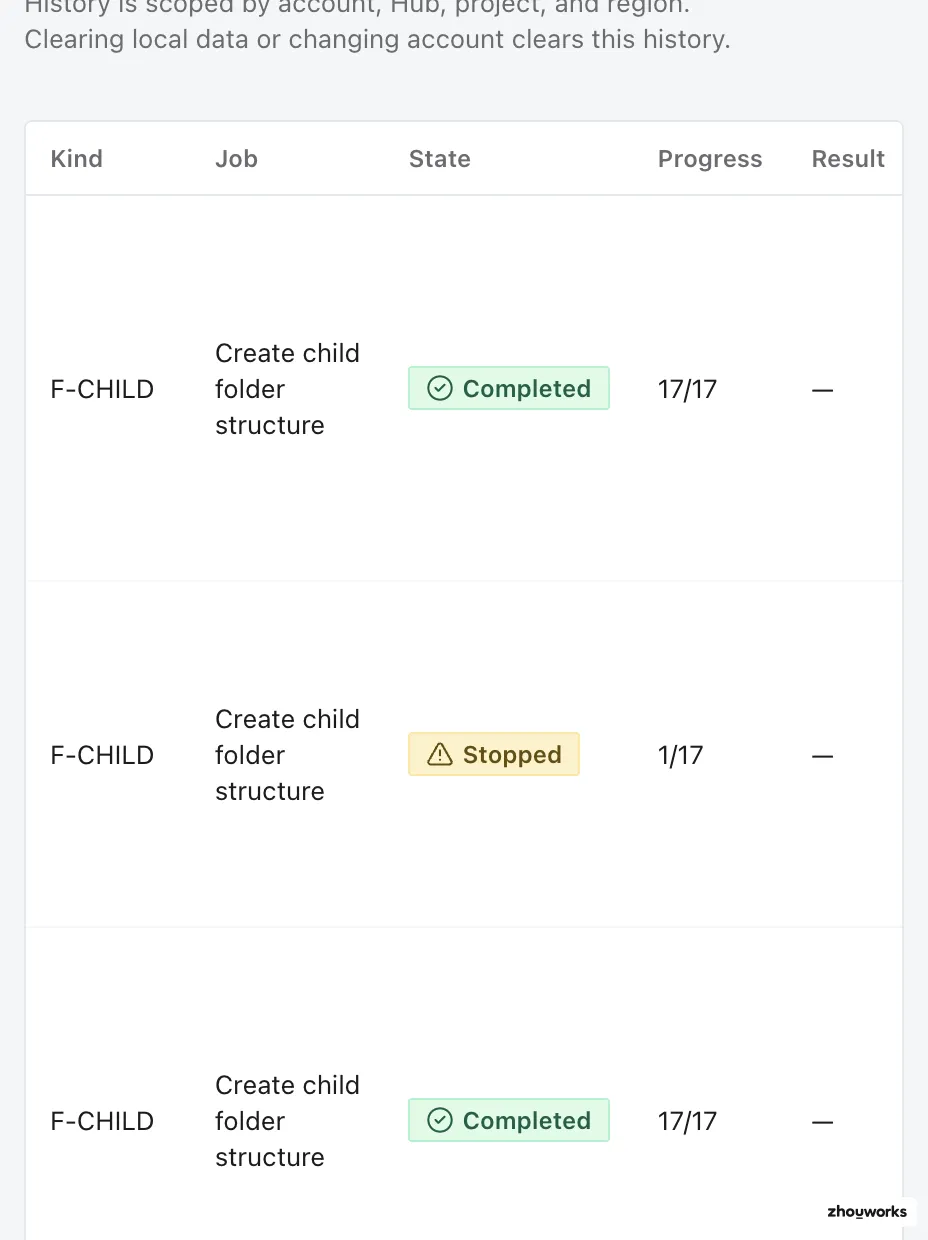
After recovery with the same candidate, the new history entry completed 17/17 while the earlier Stopped 1/17 entry remained visible.
After Completed, inspect what the workflow actually changed: destination files/folders, folder permissions, or per-row member status.
See Jobs and operation progress and Continue a job from a checkpoint.