

Jobs and history is where you inspect long-running operations after leaving the original tool screen. This list is the job-tracking surface; the current extension does not have a separate job-detail page.
State and next action
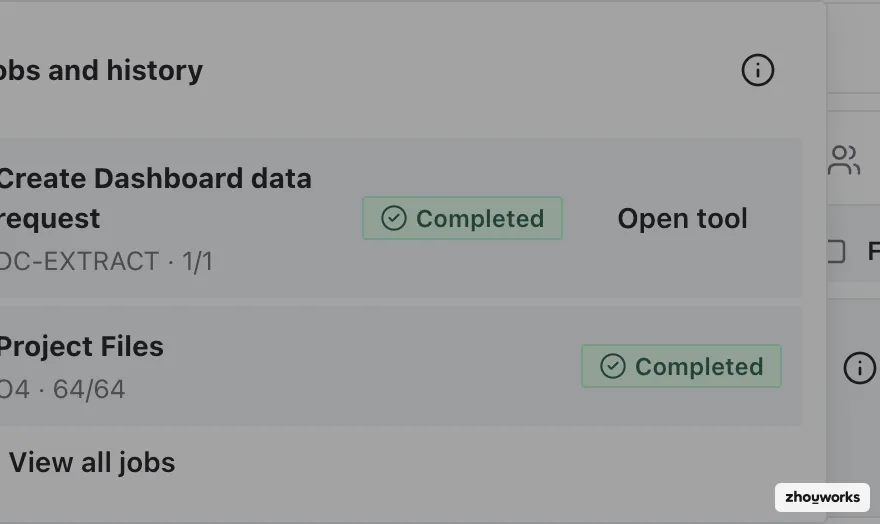
Jobs provides quick access to the state and next action for longer operations.
- Running: the job is active; monitor progress and do not start a duplicate job.
- Paused: a required condition was interrupted; restore the session/project and use Continue when that action is offered.
- Stopped: the stop request took effect; check what completed before creating a new preview.
- Completed: processing finished; verify the relevant files, folders, permissions, or result.
- Needs attention: Flowzito cannot safely confirm part of the job; use Review issue before continuing.
- Error: open the job, read the failure, check the current project, then decide whether to continue or build a fresh preview.
History scope
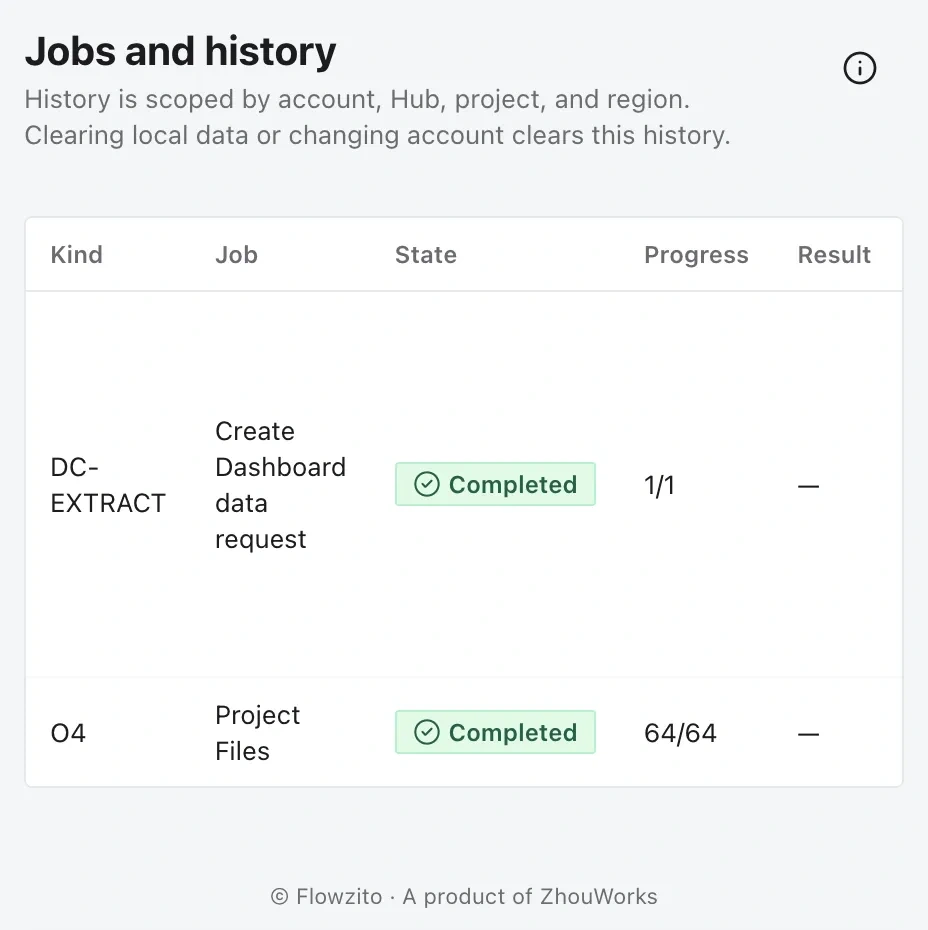
Job history is viewed within the current account, hub, project, and region context.
History is stored locally by account, Hub, project, and region. Clearing local data or changing account can remove history from this browser, but it does not delete Autodesk cloud data.
Actions
Open tool returns to the originating feature. Continue is offered for Paused/Stopped states, while Review issue is offered for Needs attention/Error. Request stop is available only while a job is Running and asks Flowzito to stop at a safe boundary. Because there is no separate detail page, deeper context and recovery happen in the originating tool.
Results
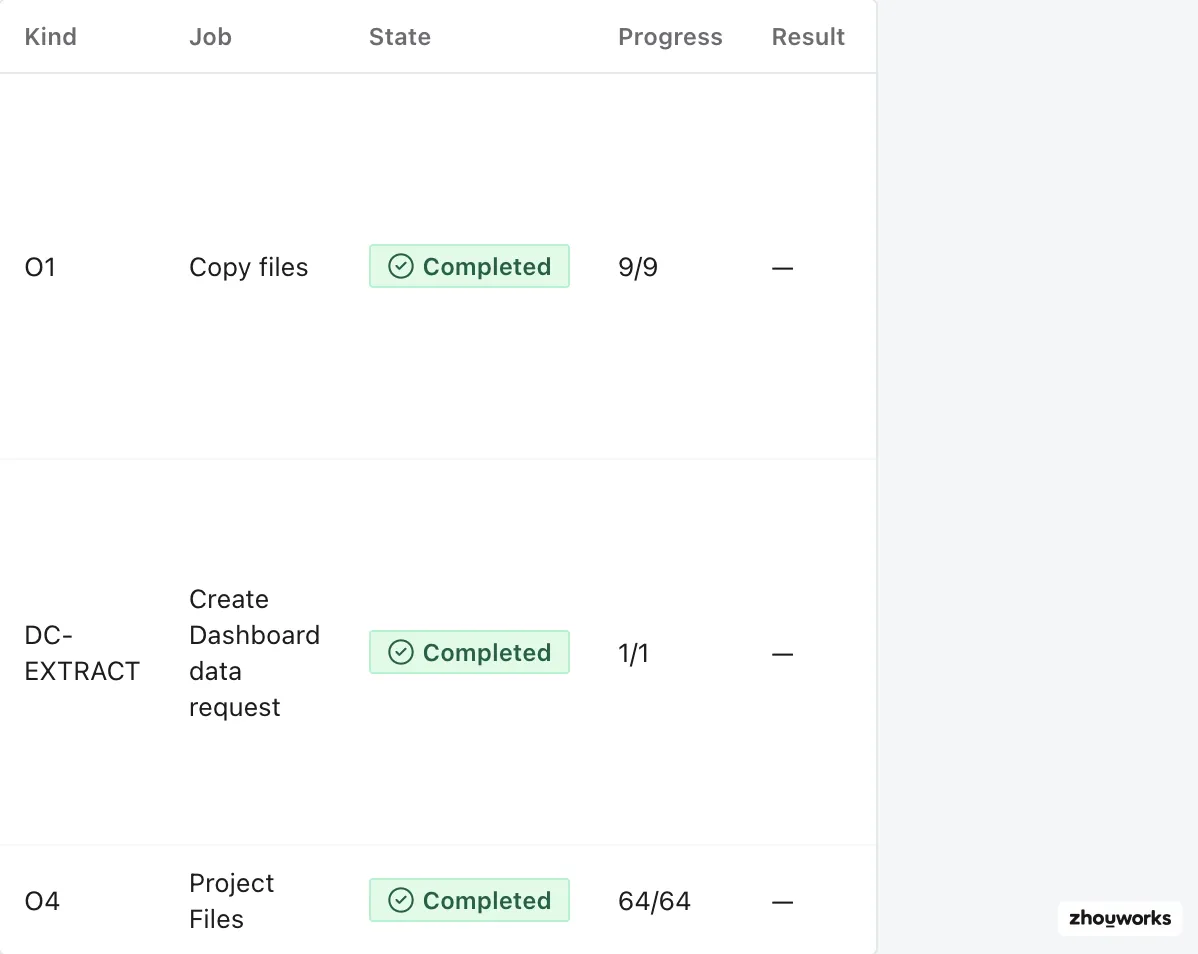
The result table shows real completed jobs with progress 9/9, 1/1, and 64/64.
Some workflows expose a result file. For an important write, do not rely only on Completed; verify the destination or the read-back shown by the tool.
See Continue a job from a checkpoint and Recover a disrupted copy/import.