

When you need to add many members to an Autodesk Forma project from Excel, Flowzito Import members XLSX lets you review the batch before invitations are sent.
Workbook columns
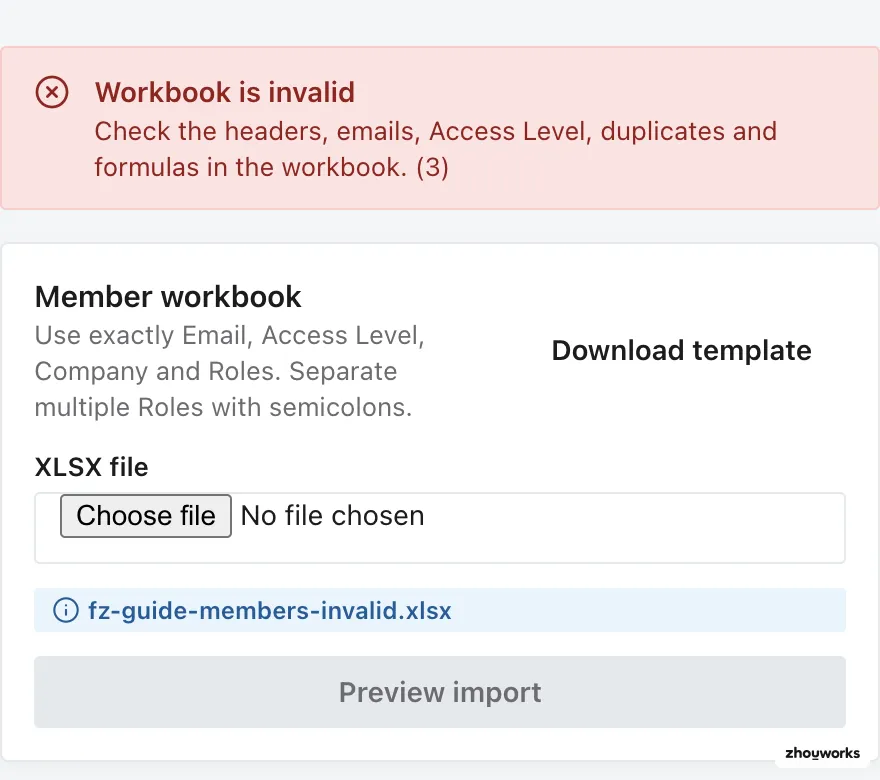
Keep exactly Email, Access Level, Company, Roles. Access Level accepts only Admin or Member. Separate multiple Roles with semicolons; formulas are not allowed.
1. Download and fill the template
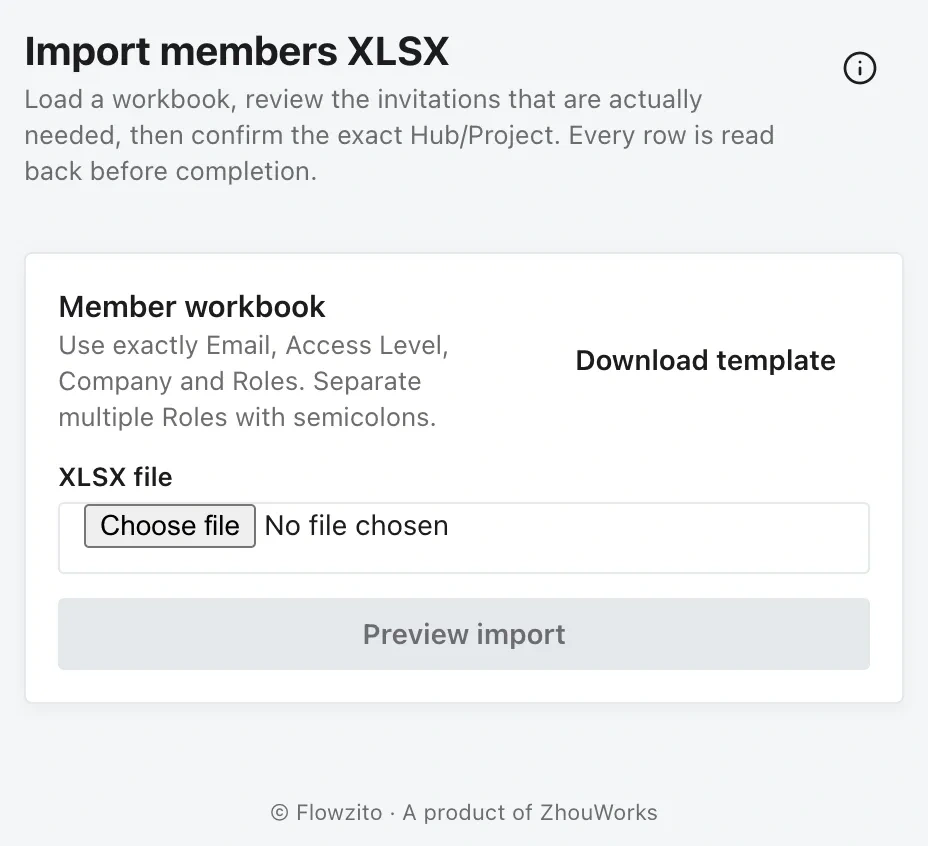
Member import starts with a correctly structured workbook.
Use Download template. Enter only people who should actually be invited to the project; do not send invitations to placeholder addresses such as user@example.com.
2. Preview the import
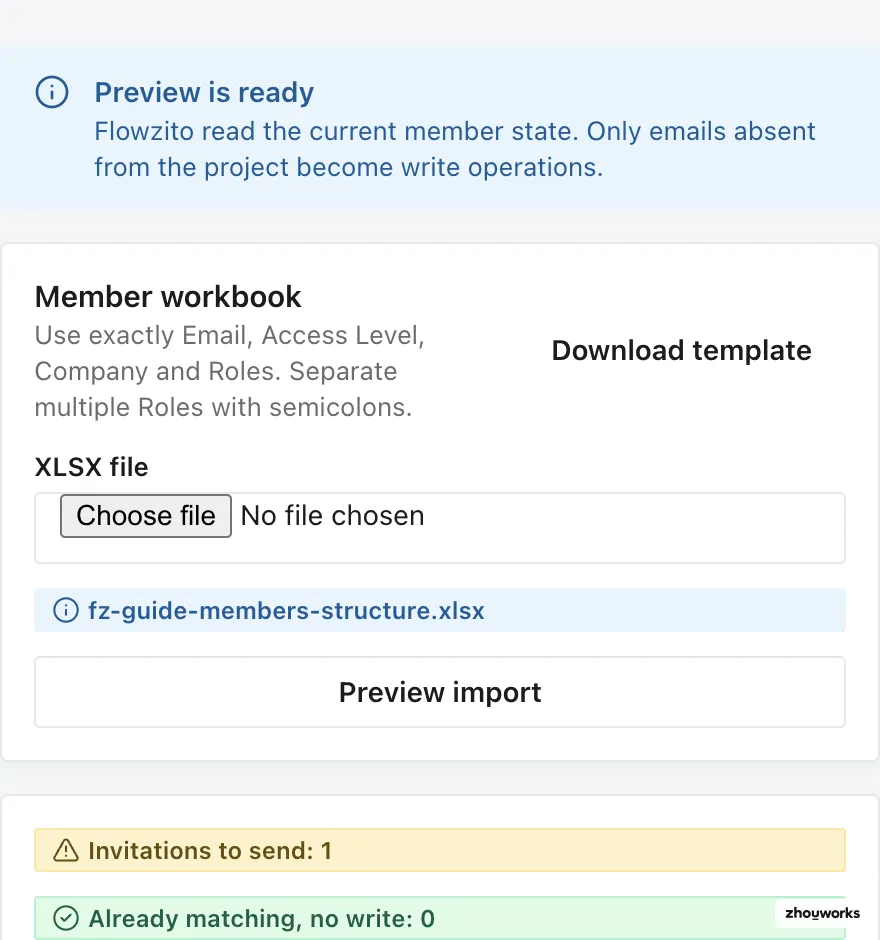
Flowzito reads current member state and separates invitations actually needed, rows that already match, and issues. Existing members whose Company, Roles, or Access Level differs are not overwritten automatically.
If the workbook contains an invalid email, Access Level, duplicate role, or formula, Flowzito blocks it during workbook validation.
3. Confirm the exact project
A sent invitation cannot be fully rolled back. Before Send invitations, recheck the Hub/Project and invitation count. If the Forma tab no longer matches the reviewed project, Flowzito stops before sending.
4. Follow per-row status
Rows can be Running, Waiting for Autodesk visibility and read-back, Verified, Paused, Conflict, or Error. Flowzito checks Autodesk state before moving on; Verified means that row matches the workbook.