

When an existing Autodesk Forma member needs a Company or Roles update, Flowzito Member administration lets you look up the email, load current values, preview the change, and send only fields that differ.
1. Find the member
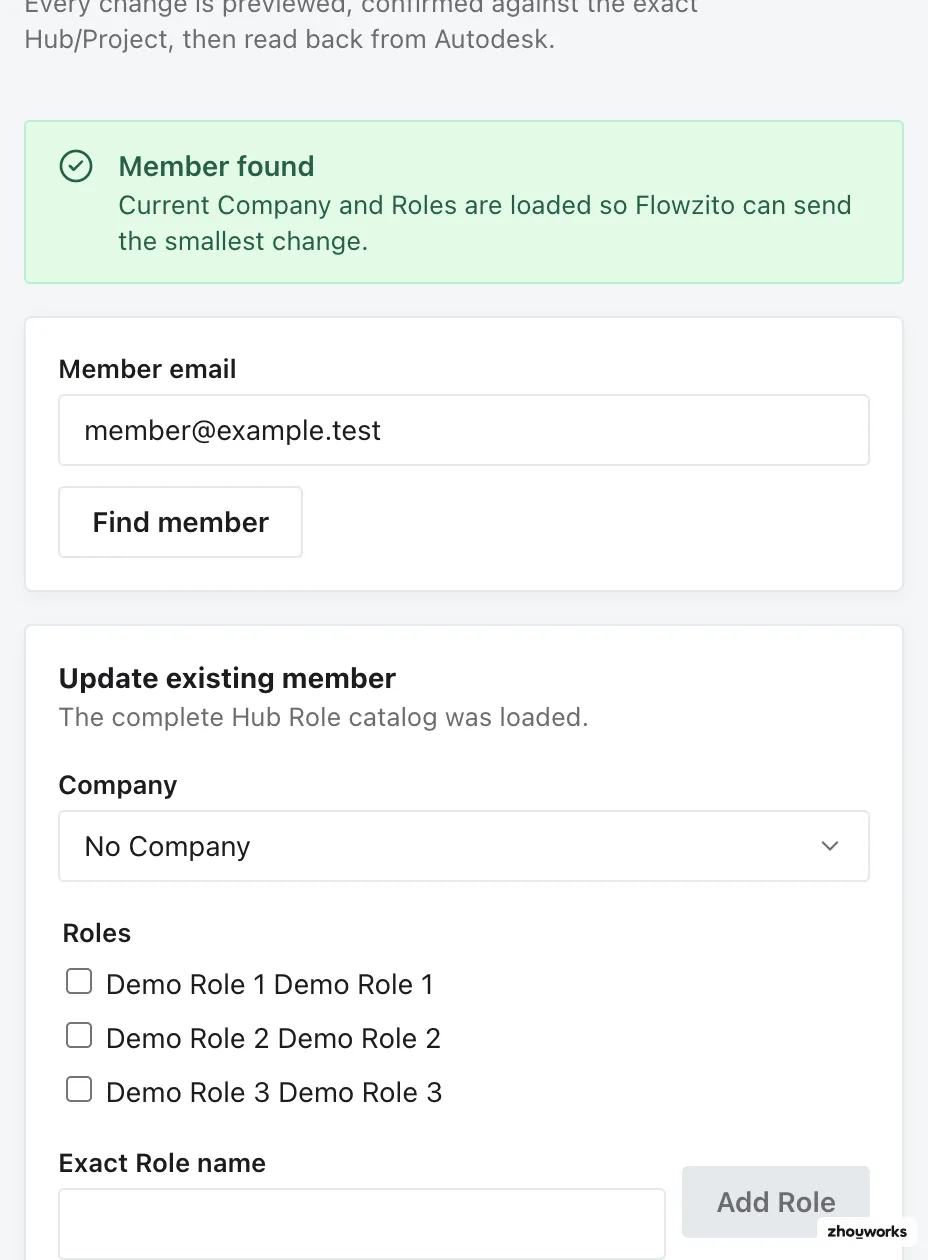
This is a genuine FZ-Test lookup. Identifying email and labels were replaced with demo text only after the real state loaded for privacy.
Select the project, enter Member email, and choose Find member. Existing members load with current Company/Roles; an address not in the project can move into the add-member flow after preview.
2. Check the Role catalog
Flowzito prefers the complete Hub Role catalog. If it can only build a fallback list from current project members, that list may be incomplete. If the required Role is missing, verify its exact name in Autodesk and reload the member data instead of selecting a similar Role.
3. Preview the change
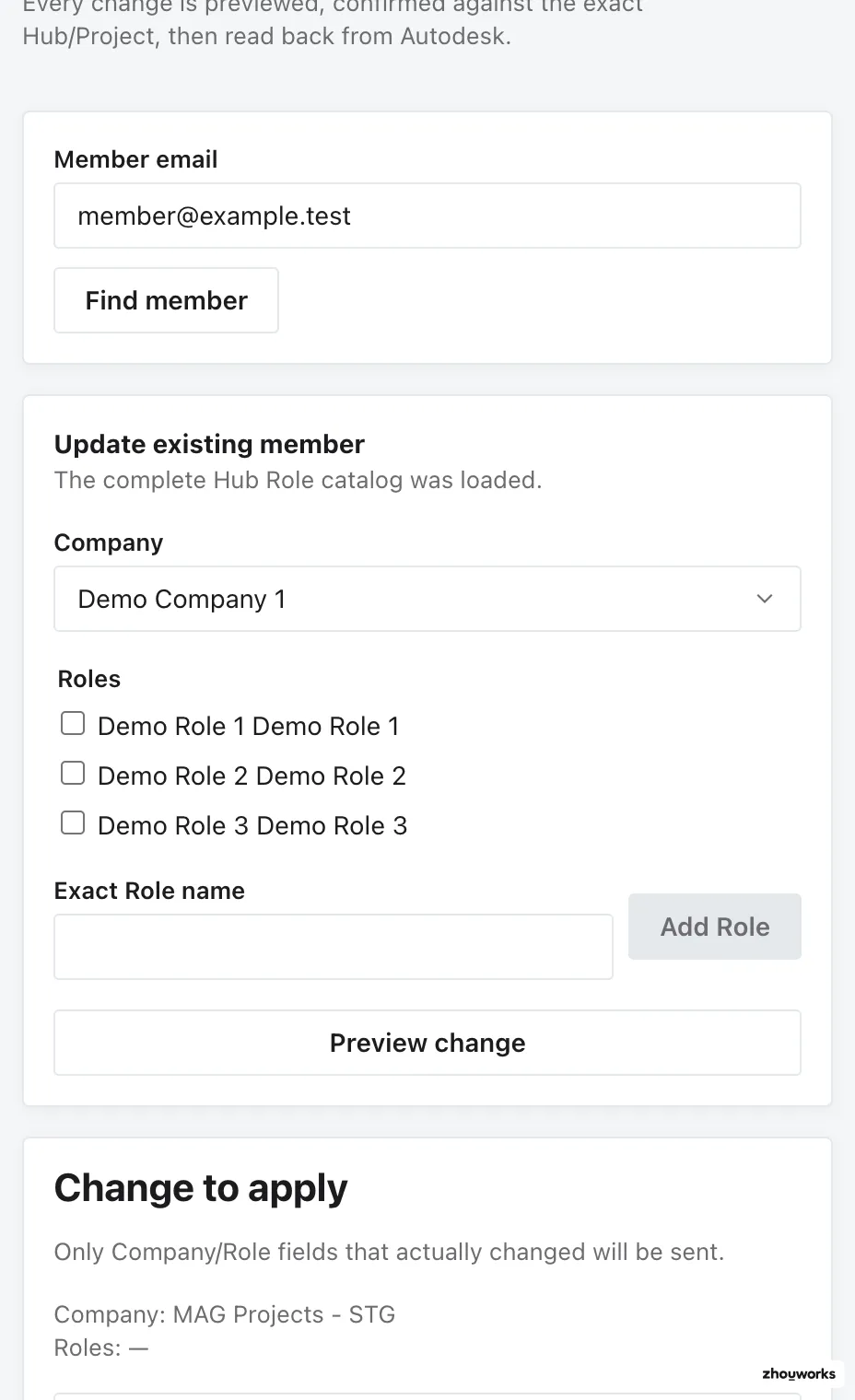
The preview comes from an existing member and stops before Confirm; no write was executed.
Choose the new Company/Roles. For an existing member, Flowzito sends only changed fields; no difference produces a no-write preview.
4. Confirm and read back
Confirm the exact Hub/Project. If member state changed outside the reviewed plan, Flowzito stops for review instead of overwriting it. Saved and verified means Autodesk read-back matches the requested assignment.
For a batch of new invitees, use Import project members from Excel.