

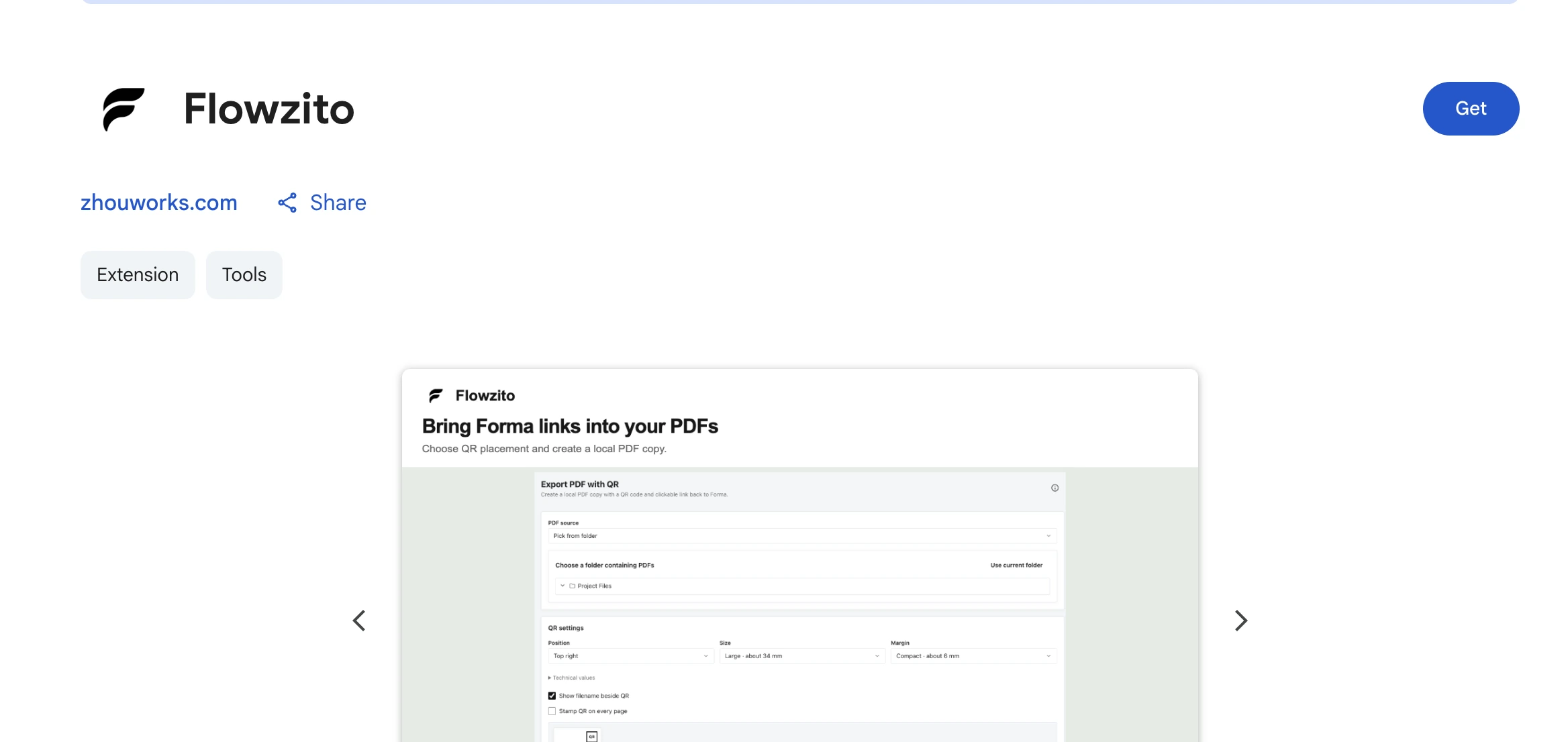
Flowzito Extension runs in Chrome and opens as a side panel beside Autodesk Forma. You can install it directly from the Chrome Web Store.
Before you start
- Use Chrome on a device where you are allowed to install extensions.
- Make sure your account can access Autodesk Forma/ACC.
- Keep an authenticated Autodesk Forma tab available.
Flowzito does not ask you to enter your Autodesk password into the extension.
Install Flowzito from the Chrome Web Store
- Open Flowzito on the Chrome Web Store.
- Select Get to install the extension in Chrome.
- Confirm Chrome's installation prompt if it appears.
- When installation is complete, open Chrome's Extensions menu and confirm that Flowzito is listed.
Open Flowzito
Open an Autodesk Forma tab. If Flowzito is not visible on the toolbar, open Chrome’s Extensions menu, find Flowzito, and pin it if useful. Select Flowzito to open the side panel.
The side panel is the primary entry surface. Flowzito also provides an action to open the same interface as a full page when more space is useful.
First launch
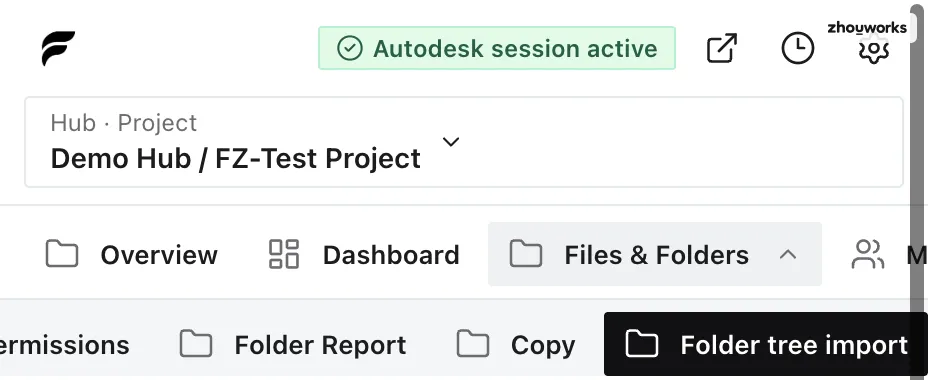
If the current build presents a consent step, complete it before using Autodesk-connected tools. Then check the Flowzito header for session state and the selected Project.
Continue with Connect Flowzito to the open Autodesk Forma project.
If Flowzito opens without a session
An open side panel does not guarantee that the Autodesk session is ready. If you see No session received yet, keep or reopen an authenticated Forma tab and follow Fix “No session received yet” in Flowzito.
After updating the extension
After Chrome updates Flowzito, if the previous side panel no longer has an Autodesk session, reopen Flowzito, refresh or navigate the Forma tab if needed, and wait for Autodesk session active before continuing.