

Flowzito uses the active Autodesk browser session. Before running a tool, verify both the session state and the Project shown in Flowzito so they match the Autodesk Forma context you intend to work in.
Quick check
- Open Autodesk Forma and sign in before using Flowzito tools that require Autodesk data.
- Autodesk session active means Flowzito has received the current Autodesk session.
- The Hub · Project control shows Flowzito's current working context.
- If that project differs from the Forma tab, change or synchronize the project before writing data.
- Do not start a write operation while the project context is uncertain.
Before you start
Keep an authenticated Autodesk Forma tab open and open Flowzito Extension. If Flowzito is not installed yet, see Install and open Flowzito Extension in Chrome.
1. Open the intended Forma project
In Autodesk Forma, navigate to the project you want to use. Keep that tab available while you work in Flowzito.
2. Check the Autodesk session
At the top of Flowzito, check the session status. A ready connection is shown as Autodesk session active.
If Flowzito displays No session received yet, stop before using Autodesk-dependent tools and follow Fix “No session received yet” in Flowzito.
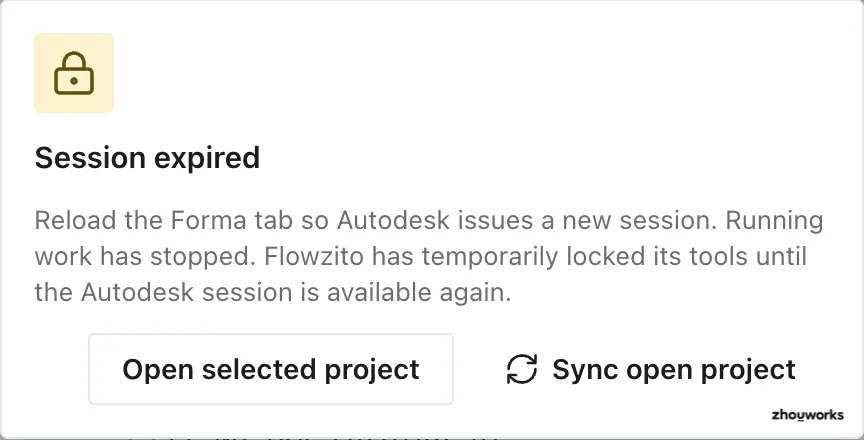
After recovering the tab/project, verify that Flowzito has returned to Autodesk session active before continuing.
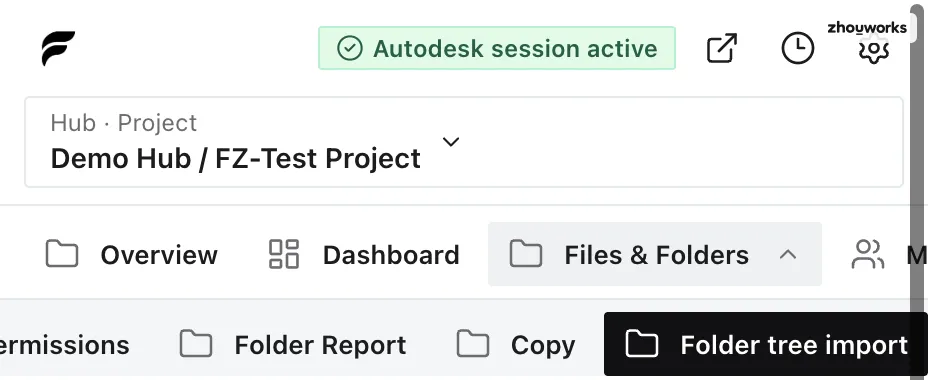
3. Check the working Hub and Project
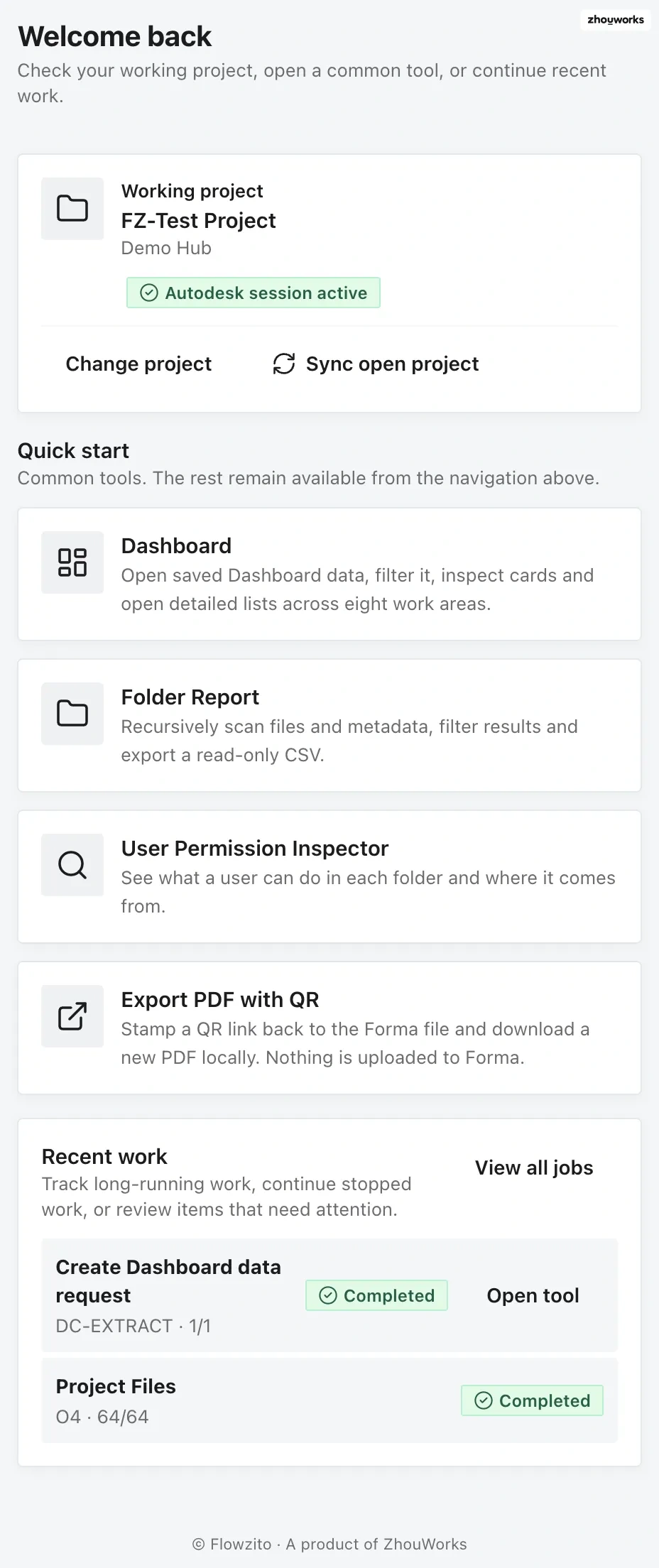
Check the session and project context before opening a tool.
Flowzito shows its working Hub · Project above the navigation. The Project name should match the project you intend to change or inspect.
If it does not match the Forma tab, use Sync open project to follow the project currently open in Forma. If Flowzito needs you to return to its selected project, use Open selected project. Then recheck Hub · Project. See Fix a Flowzito project mismatch.
4. Open the required tool
Once the session is active and the project is correct, open Copy, Folder tree import, Permission Inspector, Dashboard, PDF QR, or another tool from the navigation.
For write operations, review the preview and stated change scope before confirming. The project displayed in Flowzito is the context used by the workflow.
How to verify the connection
The setup is ready when all three conditions are true: the Autodesk tab is still authenticated, Flowzito shows Autodesk session active, and the Project displayed in Flowzito is the project you intend to use.
If any one of those checks fails, correct the context before starting a write operation.