

Flowzito Extension is a ZhouWorks Chrome extension used alongside Autodesk Forma for selected project administration tasks. It uses the active Autodesk session and works in the Hub and Project selected in Flowzito.
Quick read
- Flowzito groups file and folder tools, member and permission tools, Dashboard, PDF QR, and Jobs in one side panel.
- Write workflows are designed to show the planned scope before confirmation, while longer operations can be tracked in Jobs.
- Dashboard stores Autodesk Data Connector snapshots locally by account, Hub, project, and region.
- PDF QR creates a new PDF for local download; Flowzito does not upload that file back to Forma automatically.
- Check the selected project before any operation that can change project data.
Where Flowzito fits in your workflow
After installing the extension, open Flowzito in Chrome and keep an authenticated Autodesk Forma tab available. The top of Flowzito shows the working project and Autodesk session status. The navigation then takes you to each tool group.
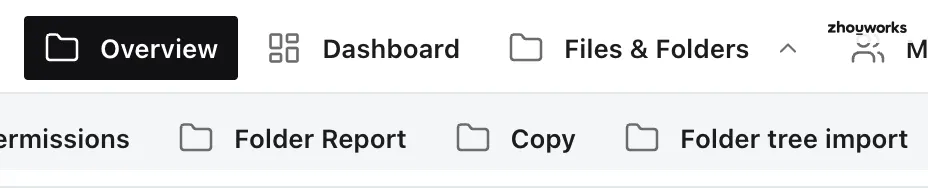
If you are getting started, see Install and open Flowzito Extension in Chrome and Connect Flowzito to the open Autodesk Forma project.
Main feature groups
Files and folders
This group covers tasks such as copying files or folders, reproducing folder structures, and importing a folder tree from an Excel workbook. For write operations, Flowzito exposes the planned scope before execution.
See Copy files and folders with Flowzito and Import a folder tree from Excel with Flowzito.
Members and permissions
Permission Inspector checks a user's effective folder access and helps distinguish direct and inherited sources. Flowzito also includes folder permission management and member import from Excel.
See Check user access with Permission Inspector, Manage folder permissions with Flowzito, and Import project members from Excel.
Dashboard
Dashboard reads synchronized Autodesk Data Connector data and stores a local snapshot. The current interface provides Reviews, RFI, Overview, Issues, Submittals, Forms, Assets, and Schedule areas, with filters and detail views for the available data.
See Flowzito Dashboard and Autodesk Data Connector.
PDF QR
PDF QR adds a QR code and clickable link to a local PDF copy. You can choose position, size, margin, filename display, and whether to stamp every page. The result is downloaded to the device as a new file; it is not automatically uploaded back to Forma.
See Create a PDF with QR using Flowzito.
Jobs and recovery
Longer operations can appear in Jobs and history with their state and progress. From there, you can inspect the result, reopen the related tool, or continue a job when that workflow supports checkpoints.
See Track Jobs and progress in Flowzito.
Before using a tool
Check three things: the Autodesk tab is still authenticated, Flowzito reports an active Autodesk session, and the displayed project is the one you intend to change.
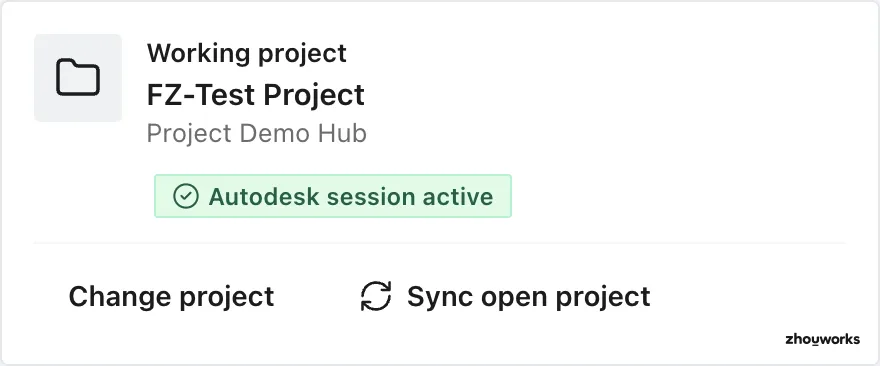
For write operations, review the preview or stated scope before confirming.
If Flowzito has not received an Autodesk session, see Fix “No session received yet” in Flowzito. If the selected project does not match the Forma tab, see Fix a Flowzito project mismatch.
Limits to keep in mind
Flowzito does not replace Autodesk Forma as a whole. It focuses on the workflows shown in its navigation and can only perform actions allowed by the active Autodesk session and your current project permissions.