

Say you want ChatGPT to read a planning page that lives in Notion, and the first help page you open is about Notion using your ChatGPT plan. Follow it and you sign in fine, yet the chat still cannot see your planning page.
The word "connect" covers three different jobs, and the easiest way to tell them apart is which way the data travels. On the Notion and OpenAI help pages read on 12 November 2026, they are:
- The Notion app inside ChatGPT, so ChatGPT can search and read Notion pages the connected account is allowed to see. Source: Notion app and setup in ChatGPT.
- Notion MCP, a bridge so an AI app, including ChatGPT, can read and write Notion pages with your own Notion permissions. Source: Connect AI tools to your workspace with Notion MCP.
- The opposite direction: Notion Agent uses your ChatGPT plan to run some work inside Notion. Source: Use your ChatGPT plan with Notion Agent. This path does not send Notion pages to ChatGPT.
If all you want is for ChatGPT to read a page, start with path 1. Path 2 is worth considering when you use another AI app such as Claude or Cursor, or want the connection method Notion describes; Notion's page does not say what MCP in ChatGPT does that path 1 does not. Path 3 is a different job entirely. The table below helps you pick.
| What you need | Path | Which way the data moves |
|---|---|---|
| You are in ChatGPT and want to read a Notion page | Path 1, the Notion app | From Notion into the ChatGPT conversation; mostly reading, creating or editing depends on settings |
| You want an AI app such as Claude or Cursor to read and write Notion as you | Path 2 | With the Notion permissions of the connected account |
| You are in Notion Agent and want a chosen GPT model to use your ChatGPT plan | Path 3 | Does not put Notion pages into ChatGPT history |
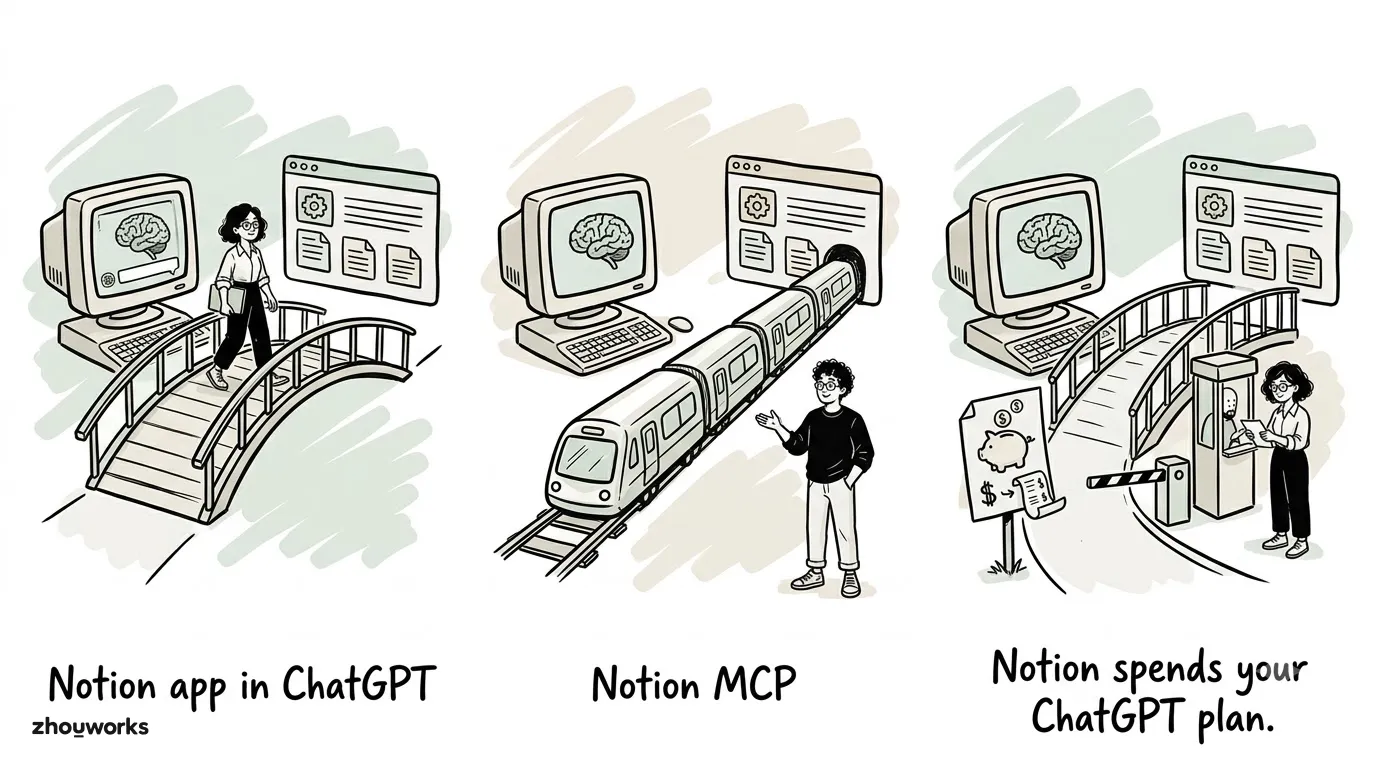
Three ways to connect, each with its own direction of data.
Path 1: the Notion app in ChatGPT

ChatGPT only sees pages the connected Notion account is allowed to open.
According to OpenAI's page, the Notion app lets ChatGPT search and read content from pages the connected account may open: project notes, planning documents, team guides. Notion does not support individual sync, so older advice about a separate sync connection is out of date. Whether you see the app at all depends on your ChatGPT plan and your Notion permissions.
The menu names below follow OpenAI's page as read on 12 November 2026. Interfaces change quickly, and another OpenAI page calls this entry "Plugins or Apps", so check against your own screen. The steps on that page:
- Open Settings, then Plugins.
- Find and select Notion.
- Select Connect. If Notion is listed as a plugin, select Install plugin and finish the connection prompt when it appears.
- Sign in to the Notion account you want to use.
- Review the workspace and content in the authorization request, then approve it.
At steps 4 and 5, sign in with the Notion account that actually holds the page; with several workspaces, the page may be in another one.
Then ask in the conversation, with a page title or project name. OpenAI's examples: summarize decisions on a quarterly planning page, find an onboarding guide, compare this month's project notes. The article's suggestion: try a page you know you can open with that same account first. If the chat finds it, the connection is working.
To disconnect or add another Notion account, look in the same Notion entry; button names follow your screen.
When ChatGPT cannot see the page
Check this before you reach for MCP. The OpenAI page lists five reasons a page can be missing: a different Notion account, another workspace, a page not shared with the connected account, content the app was not authorized to access, or a ChatGPT admin who restricted the app or the role. Start by opening that page in Notion with the account you connected.
The page also says ChatGPT may be able to create or update Notion pages depending on the app, account permissions, settings, and approvals, and that not every Notion feature exists in ChatGPT. If an action is not offered, do it in Notion. Do not widen permissions hoping a missing button will appear.
Path 2: Notion MCP
Notion's page describes MCP as a bridge so AI apps such as Claude, ChatGPT, and Cursor can read and write Notion pages. They distinguish it from older integrations because MCP is built for agents. The tools act with your Notion permissions, which means they can reach what your account can reach.
Getting started on that page is not a single button sequence. Use the Notion MCP gallery, or in Notion open Settings, then Notion MCP. Or connect from the AI app, if it has a Notion MCP entry in its settings or integrations. For a custom connection, follow the developer docs the page points to. For a page-reading job, path 1 is enough.
The page also describes a setup prompt, after the connection, so the agent knows to pull context from Notion. On these pages, an agent is the side assigned to read and write pages. For ChatGPT it says to open that prompt in ChatGPT, then put the agent's instructions in Settings, Personalization, Custom Instructions. Open the Notion MCP page and use the prompt link that is there.
The page suggests starting with one person's workflow, using clear page titles, and remembering that MCP acts with your full Notion permissions.
If you administer the workspace
On the Notion Enterprise plan, admins can turn on MCP Governance to allow only approved apps; the steps are on the Notion MCP page, under Manage workspace clients. If the workspace is not on Enterprise, do not look for those controls. Content that an AI app you connect can read falls under that app's terms.
Path 3: Notion spends your ChatGPT plan
This is the other direction. Notion's page says that if the workspace is on the Notion Business or Enterprise plan, you are a member rather than a guest, and you have a ChatGPT plan, you can connect ChatGPT so Notion Agent uses that plan when you pick a specific GPT model. The page's opening lists ChatGPT Plus, Pro, Business, or Go; its troubleshooting part names only Plus, Pro, or Go, so check Notion's current page. Auto, or a model that is not GPT, uses Notion credits. It does not work with Custom Agents.
Per Notion's page (menu names may have changed), connect from Settings, Notion AI, Me, under Connected subscriptions, Connect next to ChatGPT, then sign in and allow access. Or in Notion Agent open the model picker, Subscriptions, and select Connect ChatGPT plan.
When the ChatGPT plan allowance runs out, Notion Agent asks you to switch to the workspace's Notion credits. Turn off use of the ChatGPT plan or disconnect under Settings, Notion AI, Usage. The page says work run on a ChatGPT plan is not saved to ChatGPT chat history or memory. The connection is for billing and usage. Do not finish path 3 and then ask ChatGPT for a Notion page. The page is not on the ChatGPT side of this path.
If the option is missing, the page says to check for a Notion Business or Enterprise workspace, Notion Agent, and a valid ChatGPT plan. On a ChatGPT Business plan, the ChatGPT plan admin decides which apps may use the plan; if the button does not show, ask that person.
Before you click, ask which product you are standing in and where you want the data to go. That answer picks the path, not the word "connect" on the help page.
Keep reading
Technology7 min read
How to create a Wi-Fi QR code for an office or a café
Pick the guest network, type it on your own device, print the code and test it with a phone that has never joined.
Technology6 min read
Free up Gmail storage: empty Trash, then find the heavy mail
When Gmail is full you cannot send or receive. Empty Trash first, then find the messages with large files.