

You go to send a scan of some paperwork and Gmail says the mailbox is full. You delete a few dozen messages, look again, and the storage number has barely moved. One reason is that the deleted mail is sitting in Trash, and mail in Trash counts toward storage until it is permanently deleted. Clearing Gmail is really two jobs in a row: delete what is in Trash for good, then find the heavy messages that remain and clear them out.
The method here follows Google's page Manage storage in Drive, Gmail & Photos, read on 12 November 2026, and it applies to a personal Google Account. An account from an employer or a school can have a different quota, set by its administrator.
How to free up Gmail storage in three steps
- Permanently delete Trash and Spam. This is the fastest way to get space back.
- Search for large attachments, open them, and delete the ones you are finished with.
- Empty Trash again, then wait for the update.
You can start without reading the rest. The last section collects what falls off this path: WhatsApp, photos, work accounts.
What happens when Gmail is full?
The Help page describes a personal account with up to 15 GB shared by Google Drive, Gmail, WhatsApp backups, and Google Photos. Gmail is only one part of that.
At the limit, you cannot upload or create files in Drive, send or receive Gmail, or back up photos and videos to Google Photos. Mail people send you goes back to them, and if the account stays over quota for 2 years, Google says it might delete content across Gmail, Drive, and Photos. That is not a date you choose.
Step 1: permanently delete Trash and Spam
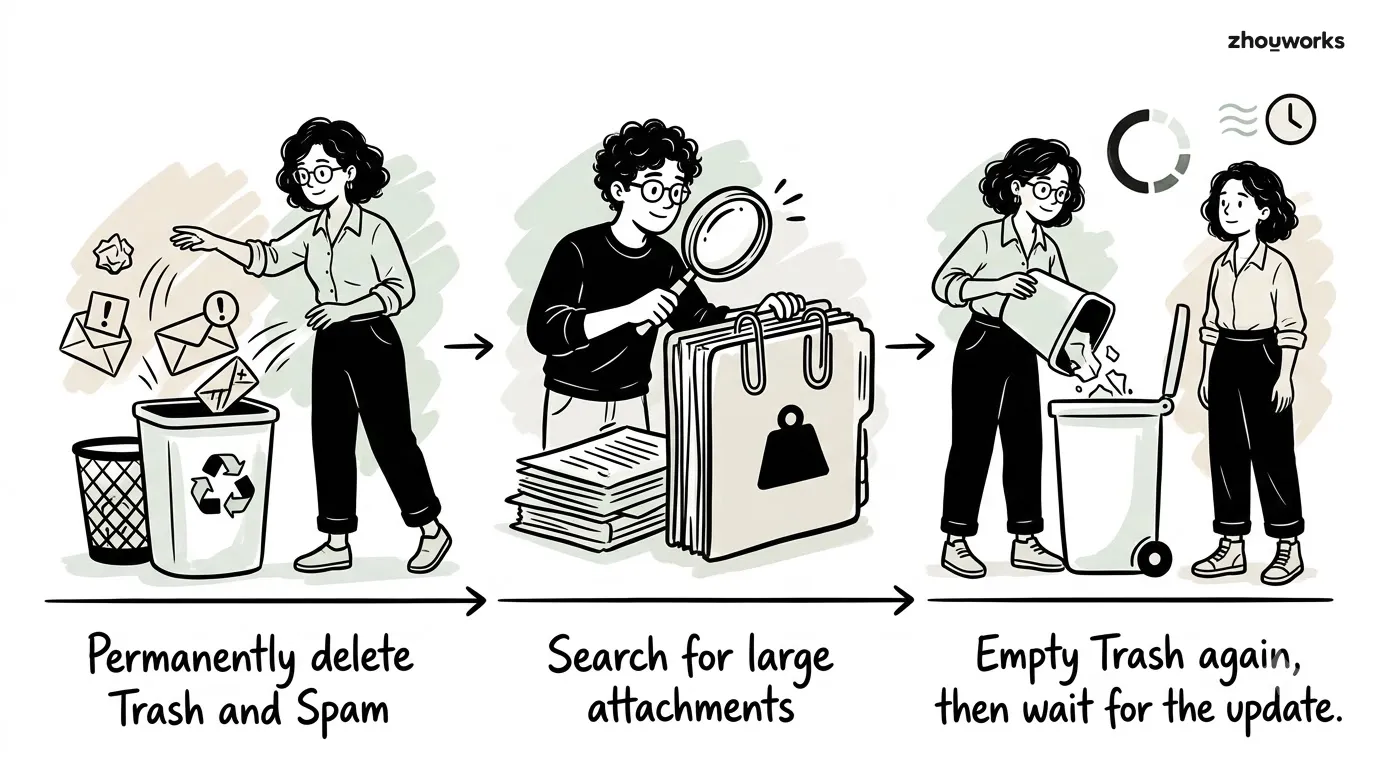
The order of the cleanup.
Help calls this the short-term way to recover space. The button names below come from the English Help page. Google's Vietnamese Help page calls the notice "Dọn sạch thùng rác ngay", and the delete control may be only an icon, so follow the labels on your own screen.
On a computer:
- Open Gmail, then open the Trash label.
- Tick the box beside each message you want gone, then click Delete at the top. Do this inside Trash, not by ticking messages in the inbox.
- To remove everything currently in Trash, click Empty Trash now in the notice at the top.
Open Spam and do the same. After you delete a lot of mail, storage can take up to 48–72 hours to update, and those messages are gone for good. If the account is still full after 30 minutes, the Help page says to move to a more selective cleanup, which is step 2.
On a phone, the Help page does not list every button in the app, so this part gives the order only:
- Open the Gmail app and go to the Trash label.
- Select the messages in that label and remove them for good. The control may be an icon rather than the words Empty Trash now.
- Open Spam and do the same.
Step 2: find the heavy mail with the search box
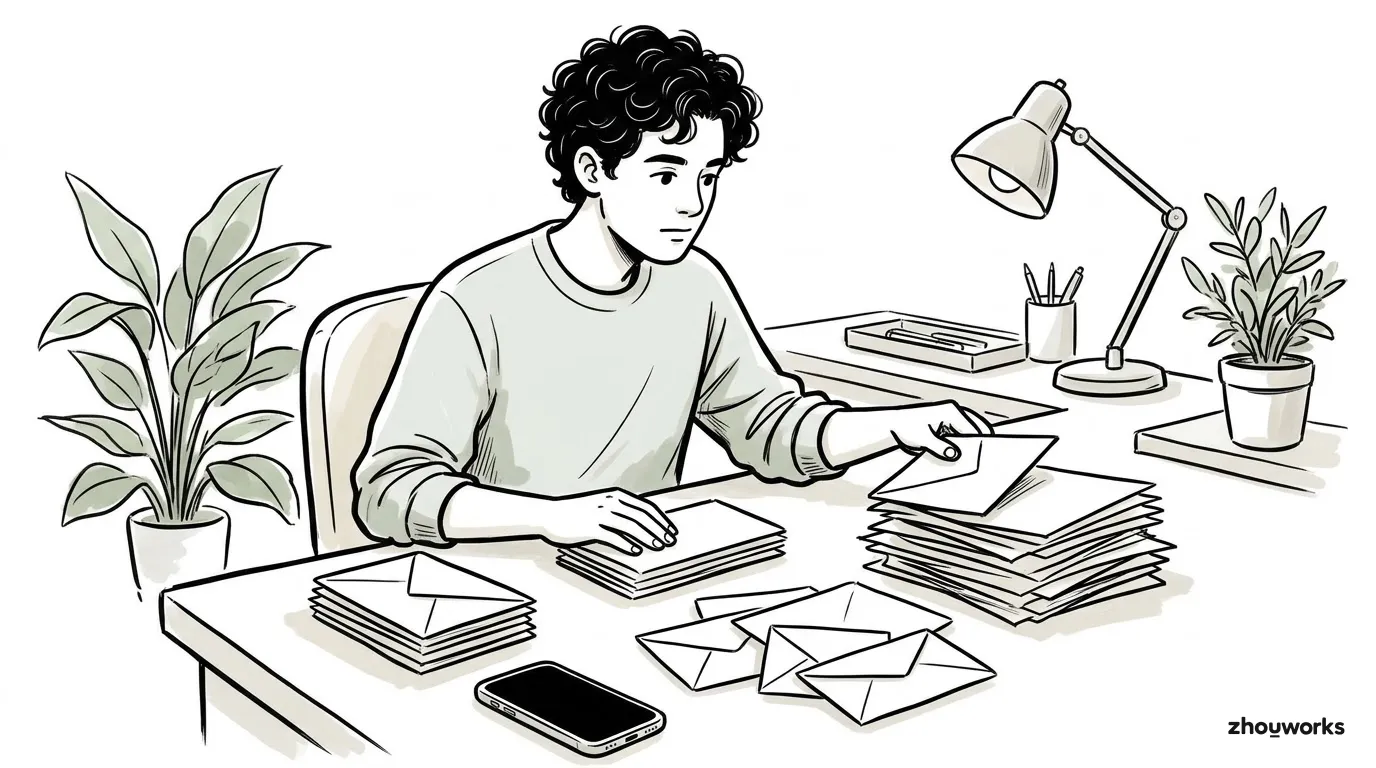
Find the large attachments first, then delete.
Emptying Trash only recovers what you had already deleted. The bulk usually sits in mail still in your mailbox, especially messages with large attachments. The storage page gives three queries for the Gmail search box:
has:attachment larger:10Mfor messages with attachments over 10 megabytes.filename:.pdf larger:5Mfor messages with a PDF over 5 megabytes.older_than:2y has:attachmentfor messages with attachments older than two years.
The computer page Refine searches in Gmail explains the operators: has:attachment finds messages with files, filename:pdf matches a file name or type (the storage page writes filename:.pdf; this article keeps each example's own command), and older_than:1y finds mail older than a period, with d for days, m for months, and y for years.
The Gmail app on Android and iPhone has a search box too: open the app, tap Search in mail, enter the query, tap Search. The two phone search pages (Android, iPhone and iPad) say the app accepts operators and give has:attachment as an example. If the app does not take larger:, use the Attachment filter button that appears when you search, and judge the rows yourself. Two things are specific to phones: offline, the app can only search mail already synced to the device, and on iPhone, Spam and Trash are left out of a normal search. To include them, enter in:anywhere and then words from the message.
Step 3: delete, delete for good, then wait
Suppose a mailbox has two groups of mail carrying PDFs over 5 MB: a few invoices from last year, and one warranty confirmation you still need. One pass looks like this.
- Search
filename:.pdf larger:5M. - Open each row before you tick it. Keep the warranty message. If an invoice may be needed for taxes or a warranty, download it first (the article's suggestion), then delete.
- Tick the PDFs you are finished with and press delete.
- Search
older_than:2y has:attachmentand repeat: open first, then delete. - Repeat the Trash and Spam cleanup from above.
- Wait for storage to update. While you wait, do not delete more just because the number has not moved, unless you are sure the message is not needed. The order matters: deleting before looking is how needed mail disappears, and deleting without emptying Trash leaves the space unreturned. Opening first costs minutes; after a permanent delete there is no way back.
larger:10M misses 2 MB mail. If the account is full because of thousands of small messages, the heavy-file query is not enough. older_than: gathers old mail, but you still have to read which rows are worth keeping.
Cleaned up and still full?
These cases fall off the main path, so they are collected here.
Photos, Drive and other shared space. Photos and videos in Google Photos sit in the same pool. Deleting Gmail does not shrink the Photos share, and the reverse holds too. Clearing Drive is a separate job, not done with a Gmail query.
WhatsApp on Android. The storage page says WhatsApp backups on Android count toward the Google Account limit, and videos usually take the most. Its steps:
- On the Android device, open WhatsApp, then Settings, Chats, Chat backup, and turn off Include videos.
- Tap Back Up now if you want a backup right away.
- Delete the old backup at one.google.com/storage/management.
Keep that order. If you only delete the Google copy and leave the setting on, the next backup recreates one with videos. Deleting the old backup also drops chat history if you change phones or reinstall WhatsApp before a new one exists. The page does not say an iPhone WhatsApp backup counts against Google storage, so do not copy these steps onto an iPhone.
The computer's own disk. Drive for desktop uses free space on the computer's disk when it syncs. Help says this does not change the Google storage limit, so the computer and the Google storage page usually show different numbers. Only files you own count toward the Google limit.
The phone finds fewer rows than the computer. If the same query returns fewer results on the phone, do not treat the mailbox as clear. Run it on the computer before thinking about buying space.
Buying more space. Help offers Google One as a way to buy more storage shared by Drive, Gmail, and Photos. That comes after Trash is empty and the heavy messages have been looked at. Buying space deletes nothing. On a managed account, the quota and the right to buy sit with the administrator.
Deleting mail does not give space back; permanently deleting it from Trash and Spam does.
Keep reading
Technology7 min read
How to create a Wi-Fi QR code for an office or a café
Pick the guest network, type it on your own device, print the code and test it with a phone that has never joined.
Technology6 min read
Connect Notion to ChatGPT: three ways, three data directions
Three ways to connect Notion and ChatGPT, per the help pages. Each has its own direction of data; button names follow the current help.