

A guest sits down and asks for the Wi-Fi password, and a barista reads it out one character at a time over the grinder. The guest mistypes one, asks again, and the barista repeats it. A Wi-Fi QR code exists to end that scene: the phone scans a picture and joins by itself, so nobody reads or types anything.
One thing is worth knowing before you make it. A Wi-Fi QR code contains the network name and the password, so for security purposes it is a sheet with the password written on it, drawn as a picture. Anyone who photographs the code, or picks up the printout, can join. So the decisions that matter are which network goes in and where the code is displayed; generating it takes minutes. The sections run in that order.
As for where to make it: do not paste the password into a website you do not know and download whatever image comes back. That site can keep what you typed, or hand you a code that opens their page instead of joining the network. Use a tool that runs in your own browser, such as the QR generator described at the end.
Three steps
Most small offices and cafés need only these.
Step 1: pick the right network. If the router offers two network names, put the guest network in the code, not the work network. The printer, the shared drive and the accounts computer sit on the other, work network, and its password has no reason to be on a sign in the lobby. If the router has only one network, that code is the key to the whole shop, so choose the spot with that in mind.
Step 2: type it on your own device and download the code. Open the tool, choose Wi-Fi and fill in:
- The network name (also called the SSID), with the same capitals and spaces the router shows.
- The password, retyped from the router rather than from memory. A letter O and a zero, or a lowercase l and a one, are easy to swap.
- The security type: WPA/WPA2, WEP or no password. If the router uses WPA or WPA2, pick that. The wrong type can stop a phone joining even when the password is right.
The tool checks on your own device that the code scans before it allows a PNG or SVG download. If the downloaded file does not scan, do not print it.
Step 3: print it, then test with a different phone. Use a phone that has never joined this network. If it already remembers the network, forget it first, because the phone can show "connected" thanks to the old saved password rather than the new code. How a phone words its prompt after a scan depends on the operating system and version; what to check is whether it joins the guest network. Test where a guest will stand, not with your nose against the printout at the desk. If the phone cannot join, fix the code before printing any more copies, so a wrong code does not end up in several places.
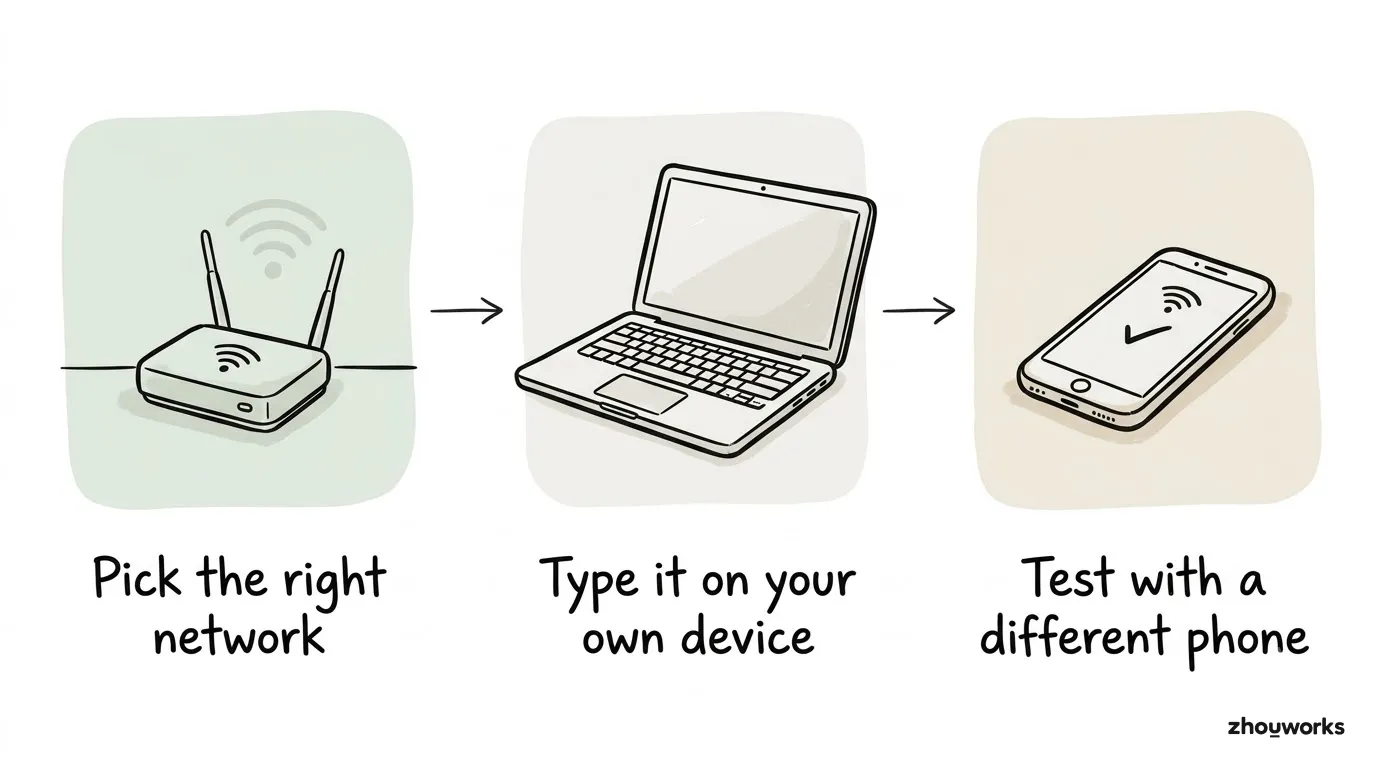
Type the password only on your own device; test with a phone that has not saved the network.
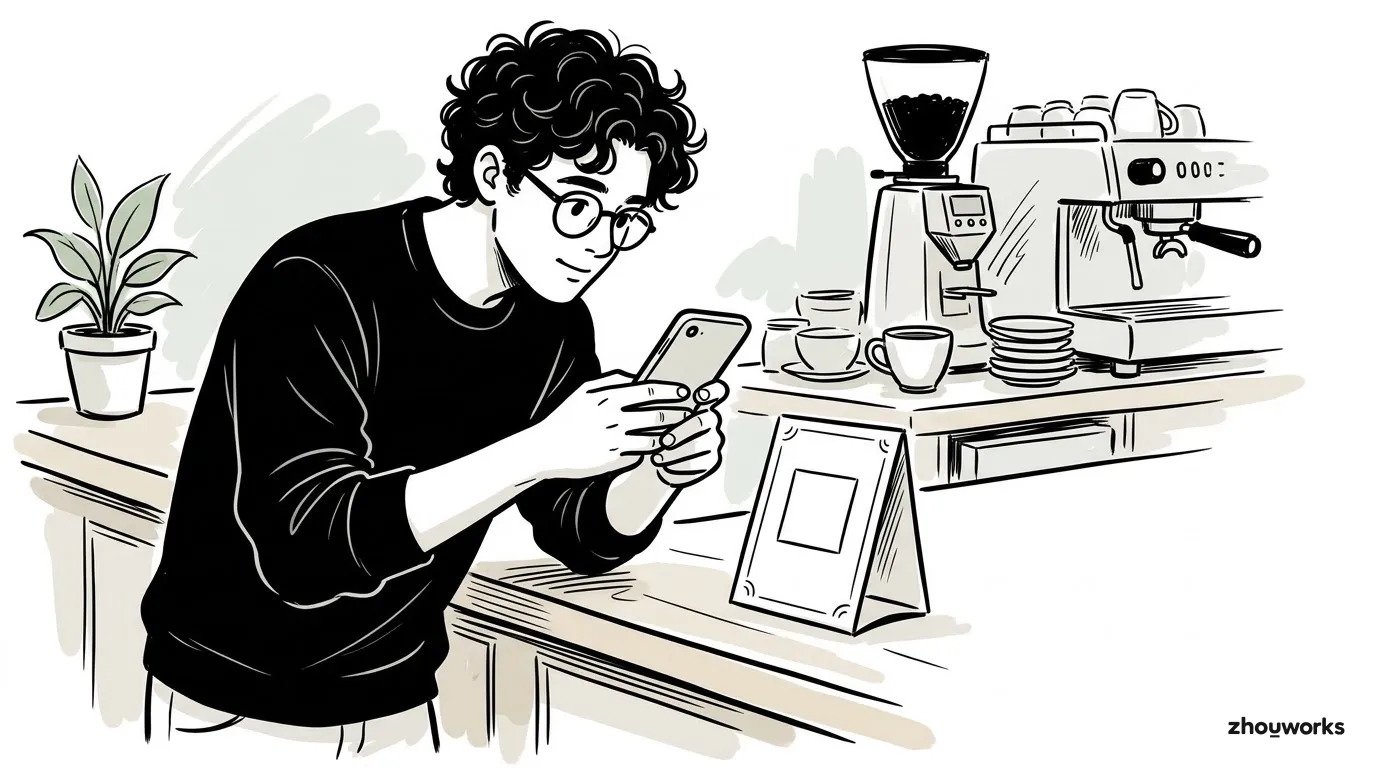
Testing from exactly where a guest would stand.
That gives you a working code. Placement and the usual snags come next.
Where can guests see it and passers-by cannot?
A Wi-Fi code has no second password. It is exactly as safe as the place you put it, so the useful question is who can see that place.
Take a one-counter café with a guest network called Cafe-Guest and a password that changes monthly (the café is an invented example). The code sits in a small acrylic stand on the counter, not on the street window. Glass facing the pavement means passers-by can photograph the password too. At closing time, if you do not want people outside hours using the network in front of the shop, put the stand away.
An office is different. A meeting room needs only the guest network code, facing into the room. If the meeting room is a glass wall onto a shared corridor, the corridor sees the code too; turn it toward the table. A visitor who leaves still knows the network, so changing the guest password on a schedule is the real protection, and the placement only reduces how many people see it.
One habit to drop: writing the password by hand under the code. The point of the code is to stop reading the password aloud, and a line of text underneath turns the printout back into the original note. When a guest cannot scan, staff reading out the guest-network password is the quickest fix; it is the guest network, so reading it reveals nothing the code does not already hold. Only the work-network password goes unread to anyone.
When the password changes, and other common snags
These are the exceptions, collected in one place.
Changing the router password changes the code. The printout on the wall still holds the old password, and a static code does not update itself. A suggested order: change the guest-network password on the router, make the new code, test it on a phone that has forgotten the network, then replace the old printout in the same visit. Once the router accepts the new password the old code no longer joins, so do it when the room is quiet and do not leave the old one up overnight. A static code is also why the password should not go to a service that promises to "fix the code after printing": a Wi-Fi code needs the data inside the code.
Two failures that point to a wrong setting. If the phone only opens a website, what you scanned holds an address, not a network; make it again with the Wi-Fi type. If the phone says the password is wrong, check the security type and capitals before printing more.
Hidden network. If the router does not broadcast its name, turn on the hidden-network option in the tool, or the phone may never be offered the name. Hidden does not make the code secret: whoever holds the printout has name and password.
Phones that will not join. A work phone can be blocked by device-management policy from unfamiliar networks, which says nothing about the code; borrow a personal phone. If two ordinary phones both fail, go back to the network name and security type. With an older phone or a reluctant guest, try one more device before calling the code broken. A faint print, glossy paper, or glass throwing glare back makes the camera see a bright streak instead of the squares, so reprint on plain white paper.
What size to print, and who gets the file
A Wi-Fi code does not need a full sheet of A4. The size it needs depends on how far the guest stands and how it is printed, so print one and scan it from that distance; measurements are in the article on QR print size. White ground, sharp lines. Logos and colors are decoration. For a code at a counter, easy scanning beats a large logo. When you add a logo, the tool locks error correction at the high level so the code can still be read, but you still test a scan and do not trust the picture on the editing screen.
Keep the original file on the shop's or the office's own machine, and do not drop it into a shared chat that still includes people who have left: the PNG is a copy of the password.
Checklist before you stick it up
- ☐ Right network name and right security type
- ☐ Guest network, not the work network
- ☐ Scanned with a phone that has not saved this network; it joins Wi-Fi and does not open a website
- ☐ Placed where the street or an outside corridor cannot see it, and no password written underneath
- ☐ The previous printout is gone in the same visit as the password change
- ☐ The PNG is not sitting in a shared chat
Making the Wi-Fi code in your browser
The ZhouWorks QR generator at /tools/qr-generator has a Wi-Fi type. It runs in your browser and makes a static code: the network name and password are written into the image, and the tool does not store what you type. Because the code is static, changing the router password means making a new code and replacing the old printout; the tool cannot change a code that is already printed.
Keep reading
Technology6 min read
Connect Notion to ChatGPT: three ways, three data directions
Three ways to connect Notion and ChatGPT, per the help pages. Each has its own direction of data; button names follow the current help.
Technology6 min read
Free up Gmail storage: empty Trash, then find the heavy mail
When Gmail is full you cannot send or receive. Empty Trash first, then find the messages with large files.