

When you need to know what a member can actually access in Autodesk Forma, Flowzito User Permission Inspector provides a read-only view of direct assignments, inheritance, and effective access across the folder tree.
Quick read
- Select the project and enter the member email.
- Inspector does not write changes to Forma.
- Results distinguish direct, inherited, and effective access.
- Changes view focuses on folders whose effective access differs from the parent.
- When the inherited source cannot be established confidently, Flowzito reports it as unknown instead of guessing.
Run the check
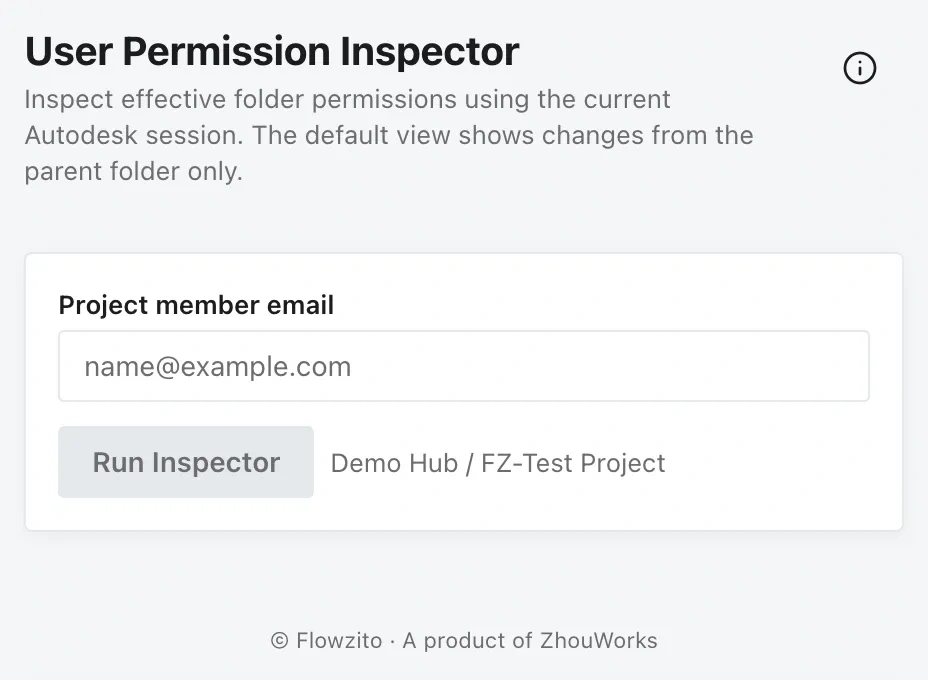
Open the Inspector to check effective access for a user.
Open Members & Permissions → User Permission Inspector. Select the Hub and Project first, then enter the email of an existing project member and run the check.
Read the result
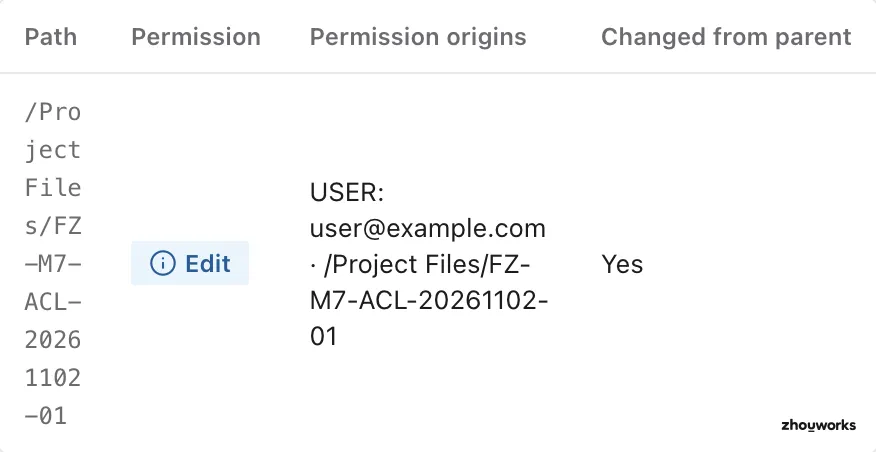
Changes view highlights a folder whose effective access differs from its parent and shows the permission origin.
For each folder, separate Direct access assigned there, Inherited access received from its parent, and Effective access after those sources are combined.
For a user, access can also come through User, Role, and Company assignments. No direct User row therefore does not prove the person lacks access.
Use Changes view to focus on branches where effective access differs from the parent. These transitions are useful when a user can see one part of a tree but not another.
If Flowzito cannot establish the source of inherited access with confidence, it marks that source unknown. Inspect the parent and the user's Role/Company assignments instead of treating unknown as no access.
See Why a member cannot see an Autodesk Forma folder and Direct, inherited, and effective permissions.