

When you need to change access on an Autodesk Forma folder, Flowzito Folder permissions builds a reviewed change plan before write.
Quick read
- Select the folder and a User, Role, or Company.
- Review Direct, Inherited, and Effective access before choosing the Desired level.
- Preview change resolves the request to create, update, remove direct access, or no-op.
- Flowzito blocks levels below inherited access and protects Manage/Project Admin.
- Autodesk is read back before Saved and verified is shown.
Select the folder and subject
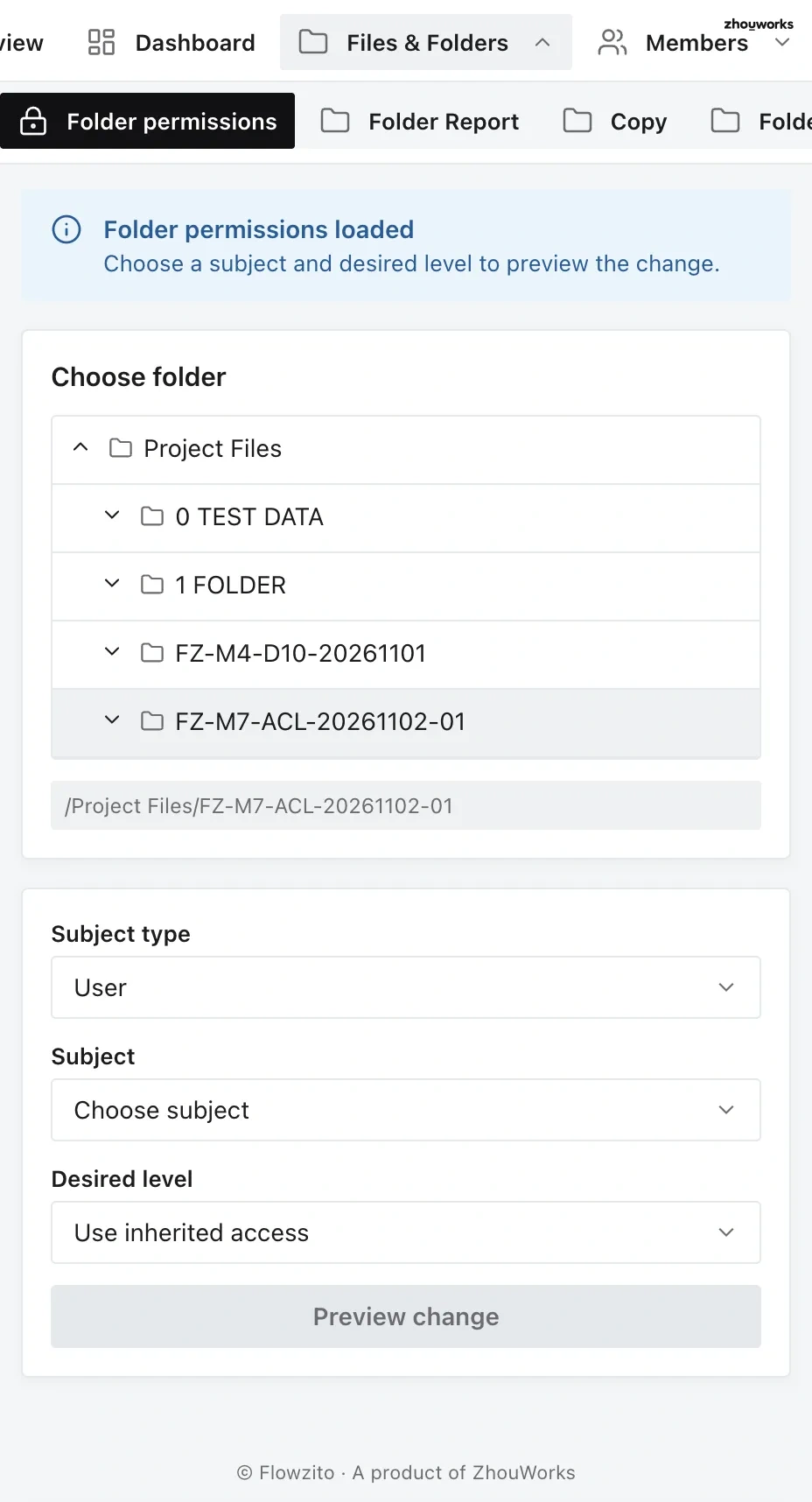
Choose the folder and subject whose access you need to inspect or change.
Open Folder permissions, choose the folder, subject type, and specific subject.
The editor shows Direct, Inherited, Subject effective access, and for users, User effective access via User/Role/Company.
Preview the desired level
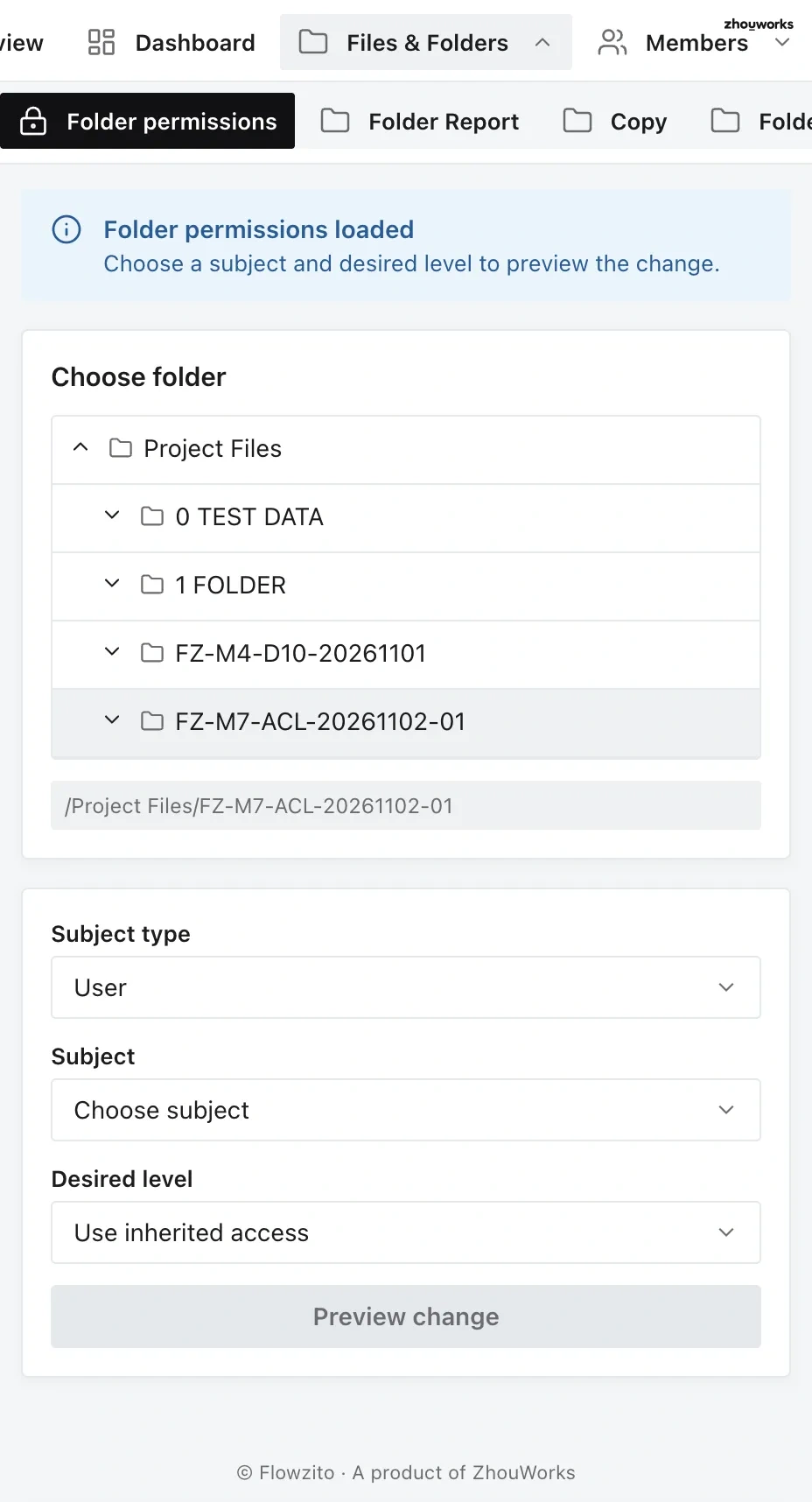
Review the current access before previewing a change.
Supported levels include None, View, View + Download, Create markup, Upload, Edit, Manage, and Use inherited access. Choose the level for the task the subject needs to perform. If Autodesk has a combination of actions that does not match one standard level, Flowzito shows Combined/custom access for review instead of guessing.
The preview tells you whether Flowzito will create, update, or remove a direct permission, or perform no write. A request is blocked when it sits below inherited access, would reduce protected Manage access, or contains current actions that cannot be mapped safely.
Apply, confirm, and verify
After Preview change, choose Apply. Flowzito then opens Confirm so you can verify the exact Hub/Project before writing. If permissions changed after the preview, reload and review again. Saved and verified means Flowzito read the Autodesk state again and it matches the requested direct assignment.
For one user's access across the tree, use User Permission Inspector.