

When you need to create many Autodesk Forma folders from Excel, Flowzito provides Import folder tree and permissions. If you only need folders, use the XLSX template and leave permission entries empty.
Quick read
- Download Flowzito's XLSX template rather than inventing sheet or column names.
- Define continuous Level columns from Level 1.
- Select a destination and run Preview import.
- The preview separates folders to create, folders to reuse, permission changes, and issues.
- Writes remain blocked while the preview has issues or after the project state becomes stale.
1. Download the workbook template
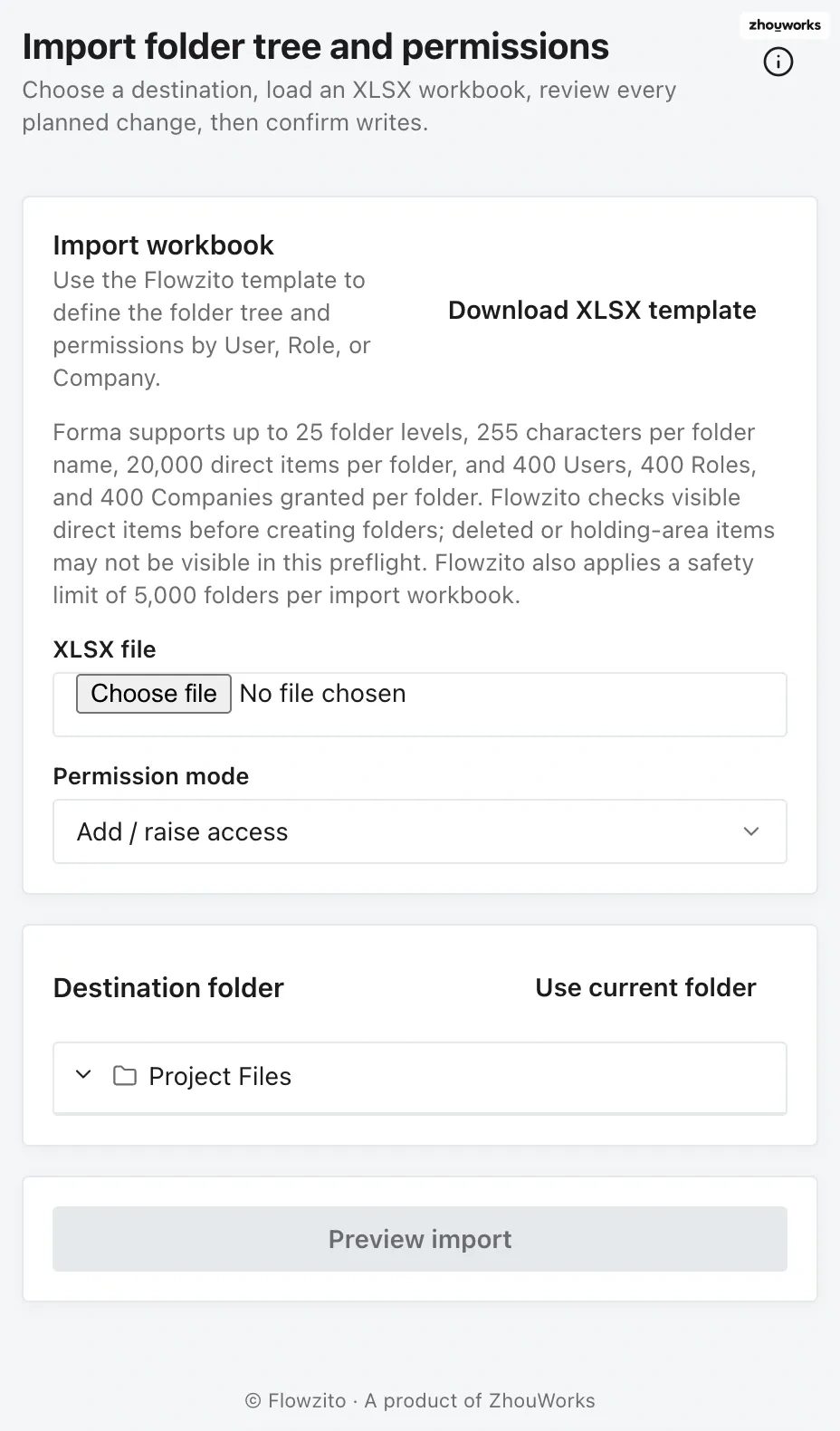
The starting point for the folder-tree import workflow.
Open Import folder tree and permissions and choose Download XLSX template. Flowzito builds the template with the project's current subject catalog so the same workbook format also supports User, Role, and Company permissions.
Keep the template sheet and column names unchanged. Folder paths can use up to 25 levels, with Level columns continuous from Level 1. Flowzito also limits one import workbook to 5,000 folders.
2. Define the hierarchy
Represent each path across the Level columns. For example, Level 1 = 01 Design, Level 2 = WIP, and Level 3 = Architecture represents 01 Design/WIP/Architecture. For a folder-only import, leave permission rows empty.
Folder names still have to respect Forma constraints such as the 255-character name limit. Direct-item capacity is checked during planning where Flowzito can observe it.
3. Select destination and mode
Back in Flowzito, choose the XLSX file and a Destination folder. For a folder-only workbook with no permission rows, keep the default permission mode. Do not choose Replace merely to make the destination look “clean.”
4. Preview the import
Select Preview import. Review the four groups in the summary: Create folders, Reuse folders, Permission changes, and Issues.
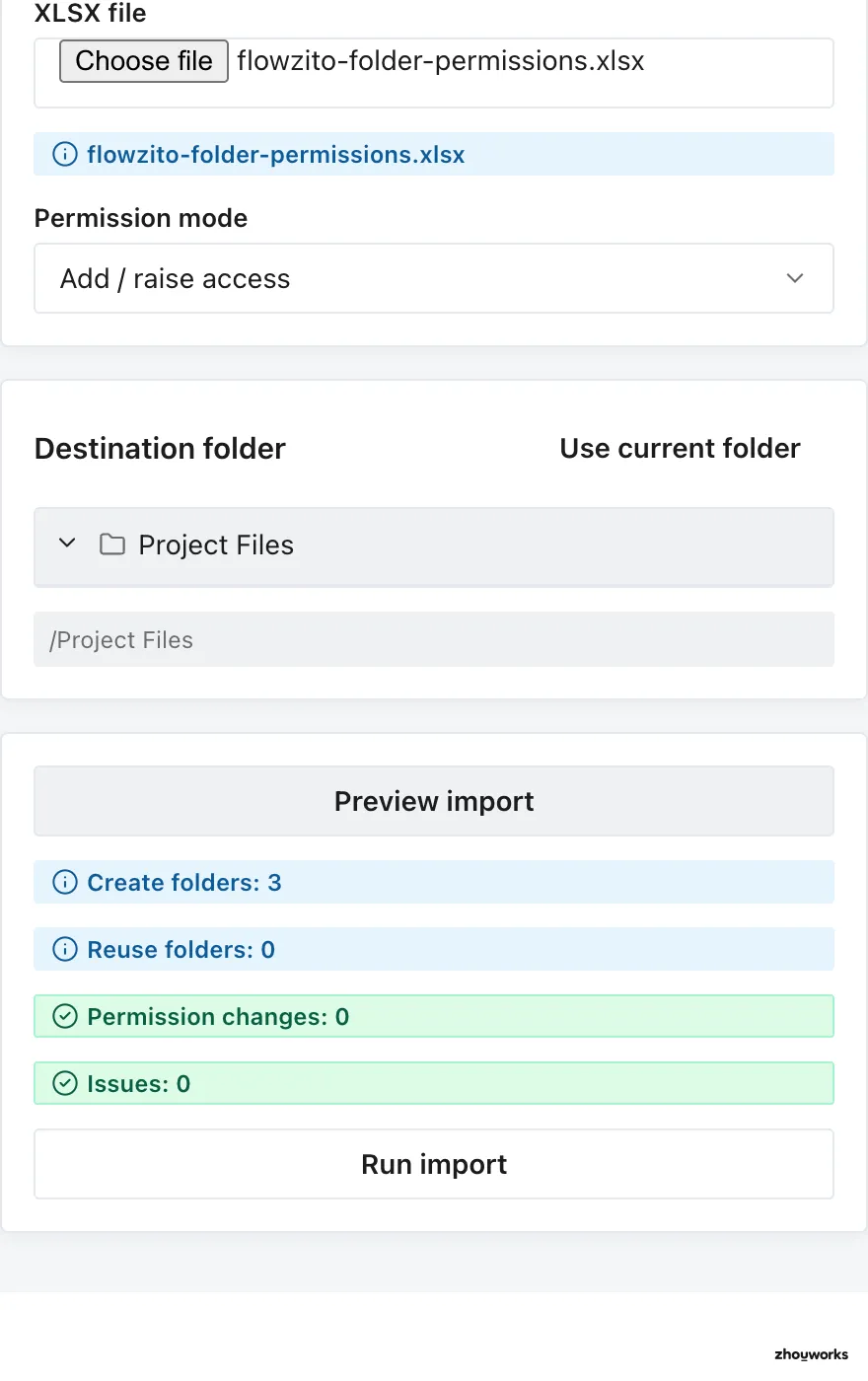
Real preview on FZ-Test Project: 3 folders to create, 0 to reuse, 0 permission changes, and 0 issues.
Case-insensitive name collisions, a file occupying a required folder name, ambiguous folders, or direct-item capacity problems must be resolved before writing.
5. Run and verify
When the preview is clean and matches the intended scope, choose Run import, check the project and reviewed operation count, then confirm. If remote state changed after the preview, Flowzito requires a fresh preview.
After Import completed, inspect the destination tree and download the result XLSX when you need an audit artifact.
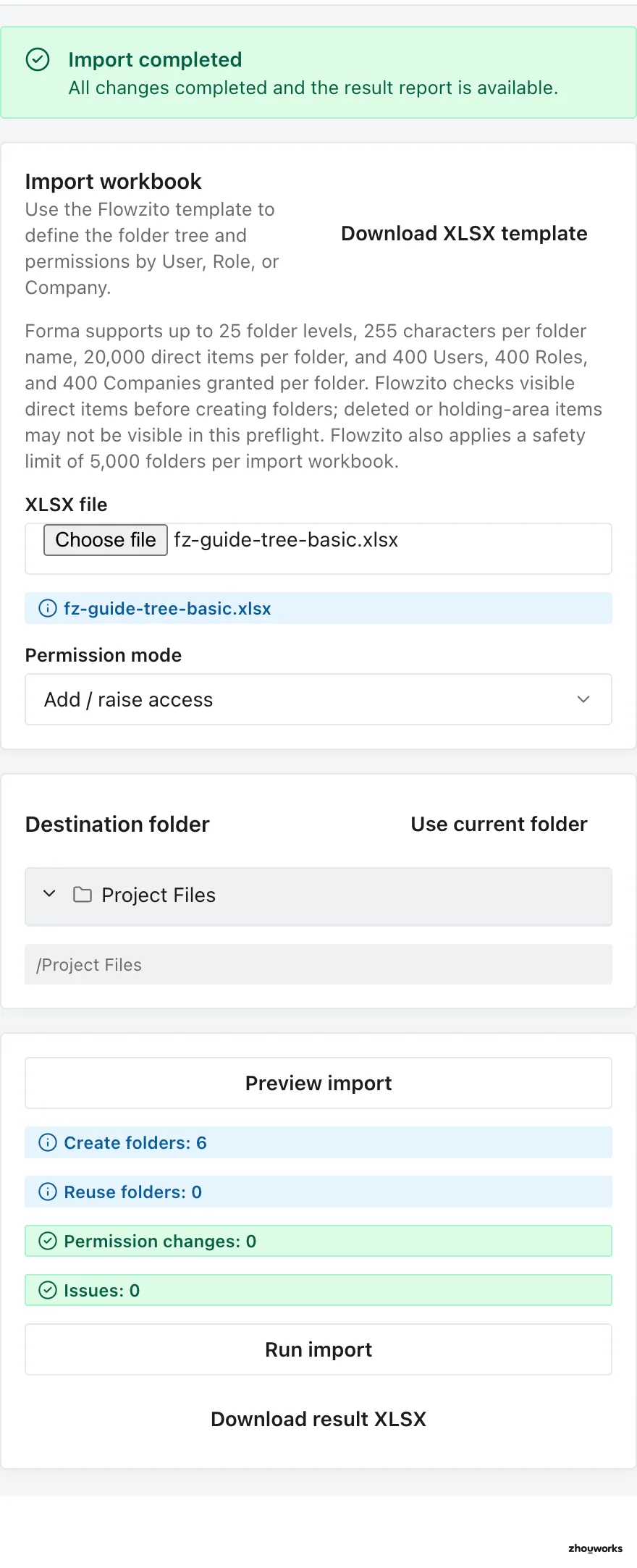
Real FZ-Test Project run: 6 folders created, 0 permission changes, 0 issues, and Import completed.
For access assignments, continue with Import a folder tree with a permissions matrix. For blocked previews, see Resolve folder-import conflicts.