

When an Autodesk Forma folder structure must be reused together with its access rules, review both the hierarchy and direct, inherited, and effective access at the destination. Flowzito exposes these changes for review before write.
Quick read
- Select the folder-structure workflow and enable Copy direct permissions for child folders when direct access assignments should be copied.
- Treat the preview as an access-change plan, not just a folder list.
- Flowzito stops when the destination has conflicting names or permissions instead of overwriting them silently.
- Manage/Project Admin access is protected by the permission workflows.
- Verify access at the destination after the job completes.
Before running the copy
Confirm the correct Hub and Project and use a destination with a clear scope. If the permission model is unfamiliar, read Direct, inherited, and effective permissions first.
1. Choose the source tree and destination
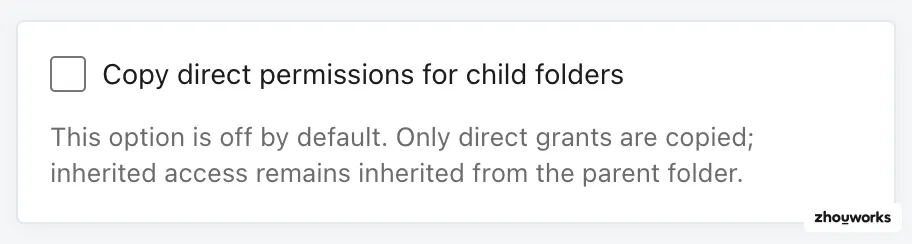
Enable this option when child-folder direct permissions are part of the copy scope.
In Files & Folders → Copy, select the source hierarchy and destination. Enable Copy direct permissions for child folders when you intend to reproduce the source tree's direct access assignments.
2. Read the ACL preview
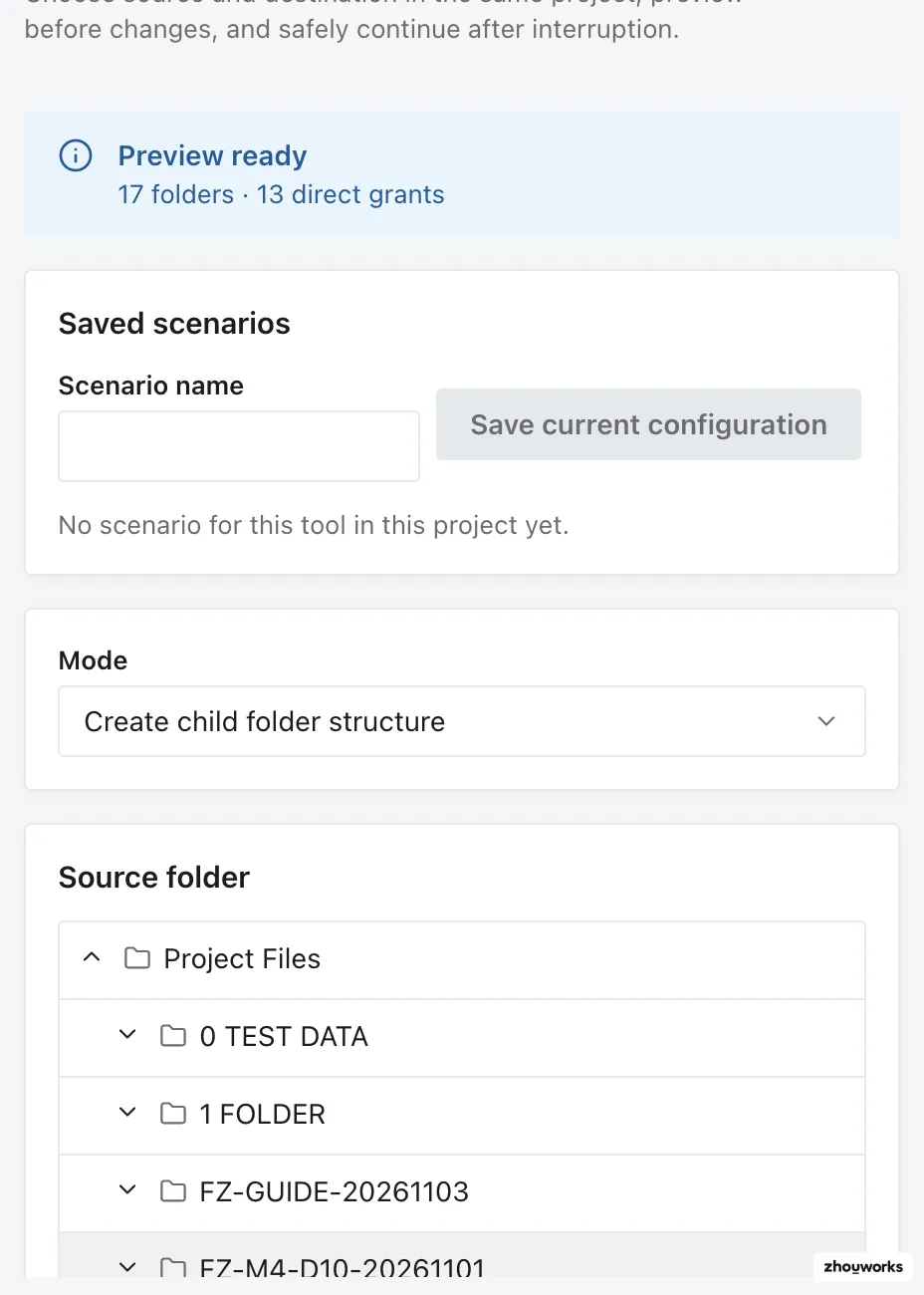
The genuine preview shows the folder scope and direct grants that will be processed before any write occurs.
The preview should answer two separate questions: which folders will be created or reused, and which permission assignments will change.
If a destination folder already exists with a different permission state, Flowzito reports a conflict. It asks you to review the destination or change the permission option instead of replacing existing data automatically.
3. Account for inherited access
A destination folder may already inherit access from its parent. Copying permissions does not mean erasing inheritance to force a matching effective level. Flowzito's permission guards prevent changes below inherited access and protect Manage/Project Admin access.
4. Confirm and read back
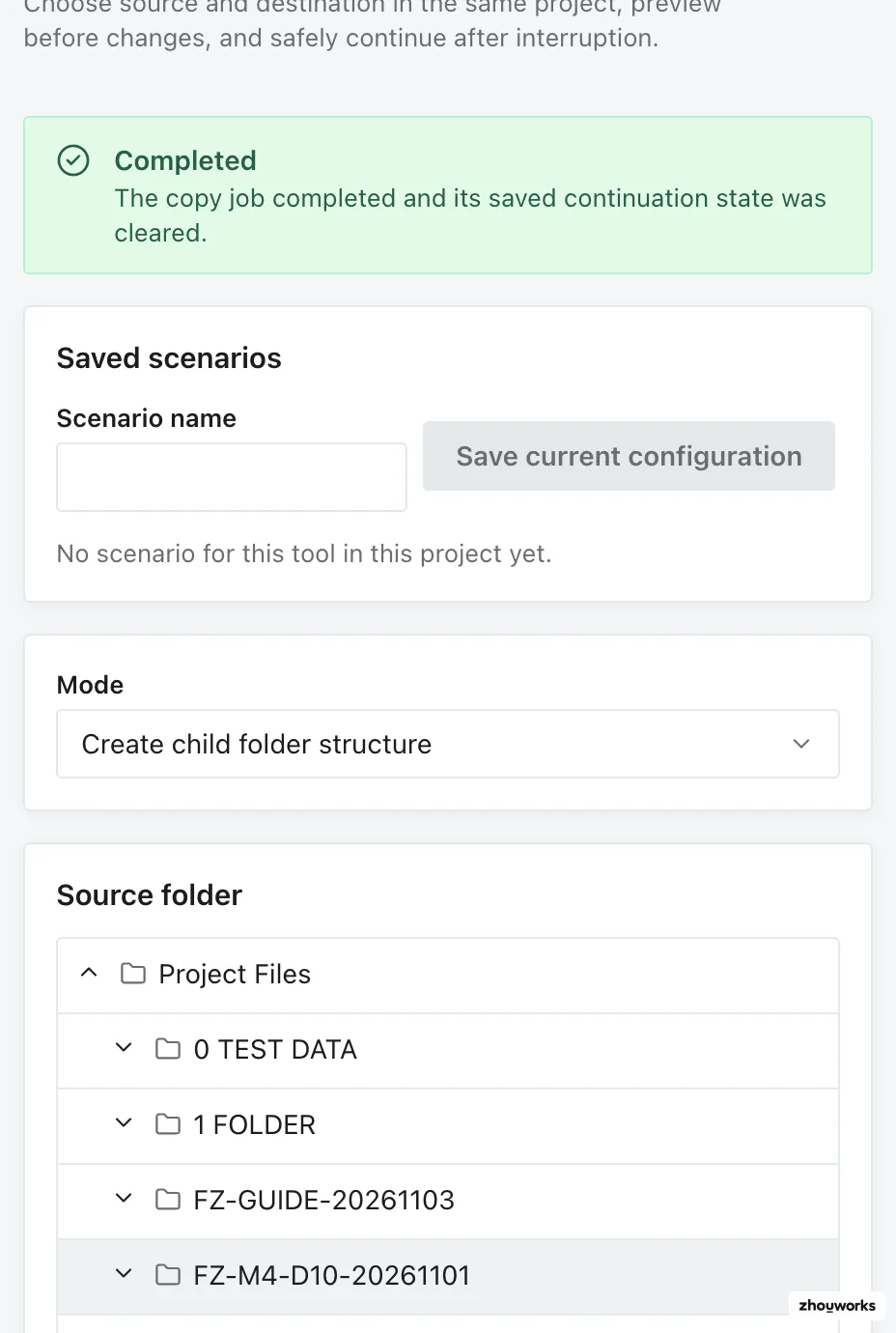
Treat the job as complete only after Flowzito reports Completed following the copy-and-verify phase.
Confirm only after the reviewed project and permission scope are correct. Once the job is complete, verify the destination with Folder permissions or User Permission Inspector rather than relying only on the job badge.
Use Manage folder permissions with Flowzito for one folder, or User Permission Inspector for a person's effective access.
If the copy reports a conflict
Do not keep rerunning the same plan. Review the existing destination state, choose another destination if appropriate, or open the affected job from Jobs and operation progress and resolve the issue first.