

When an Autodesk Forma folder import shows Issues in Preview import, Flowzito blocks writes until the cause is resolved. Classify the conflict, correct the workbook or destination state, and build a fresh preview.
Common conflict types
Case-insensitive folder collision
A destination folder may already use the required name with different letter case. Flowzito does not guess which item you intended; rename the workbook path or resolve the destination structure.
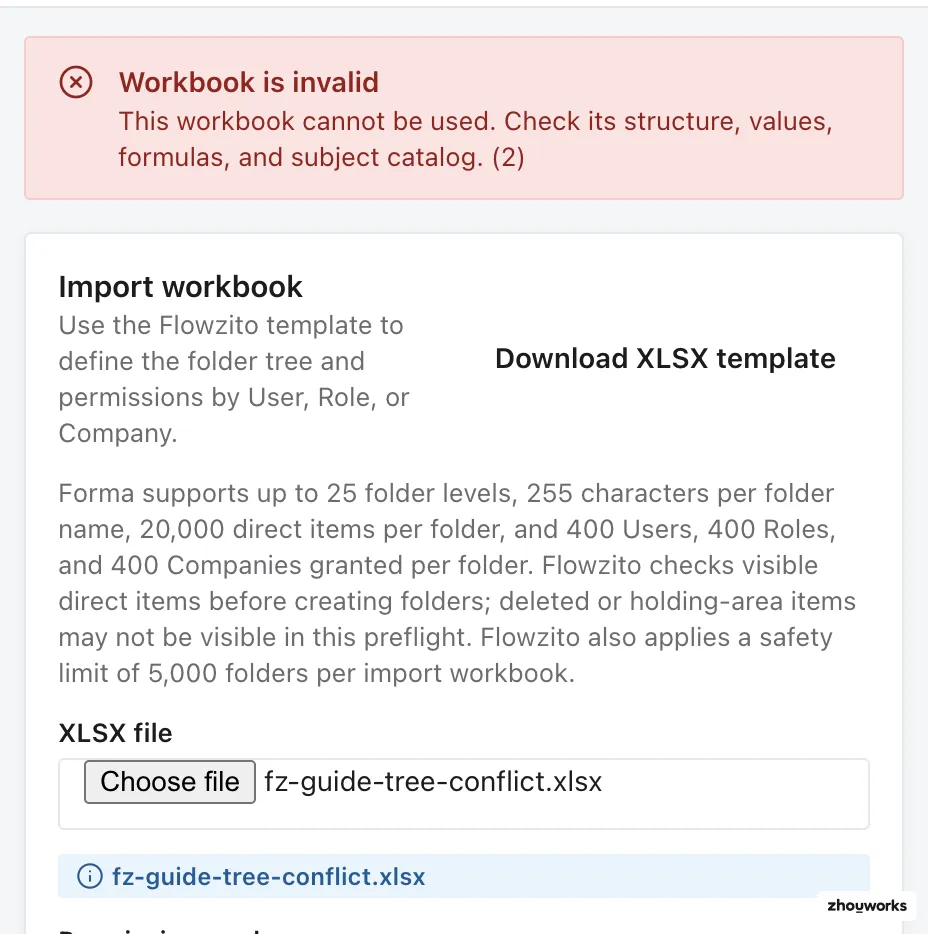
A test fixture containing a case-insensitive collision is blocked during validation; no write was executed.
A file occupies the folder name
If a file already uses the name needed for a folder, move or rename that file before importing.
Ambiguous folder match
When more than one item matches the same name, Flowzito cannot determine which folder you intended and asks you to resolve the ambiguity first.
Permission conflicts
Examples include a requested level below inherited access, a downgrade attempted in Add mode, or current permission actions that cannot be mapped safely. Manage/Project Admin access is also protected from lowering or removal.
Direct-item capacity
Flowzito checks how many items already sit directly in the destination folder. If the planned folders would exceed the Forma limit, reduce that count or choose another destination.
1. Start with the Issues list
Do not review only the folder count. Each issue tells you why a specific part of the plan cannot be written. Decide whether the cause is the workbook, destination state, or permission mode.
2. Correct the cause
- Workbook issue: fix Level columns, folder names, or permission rows.
- Destination issue: choose another destination or resolve the conflicting item using the project's normal administration process.
- Wrong permission mode: change between Add/raise and Replace only when the intended ACL behavior calls for it.
Do not use Replace merely to force a blocked preview through.
3. Build a new preview
Run Preview import again after any correction. If folders or permissions changed after the preview, Flowzito reports Project state changed and requires a new preview.
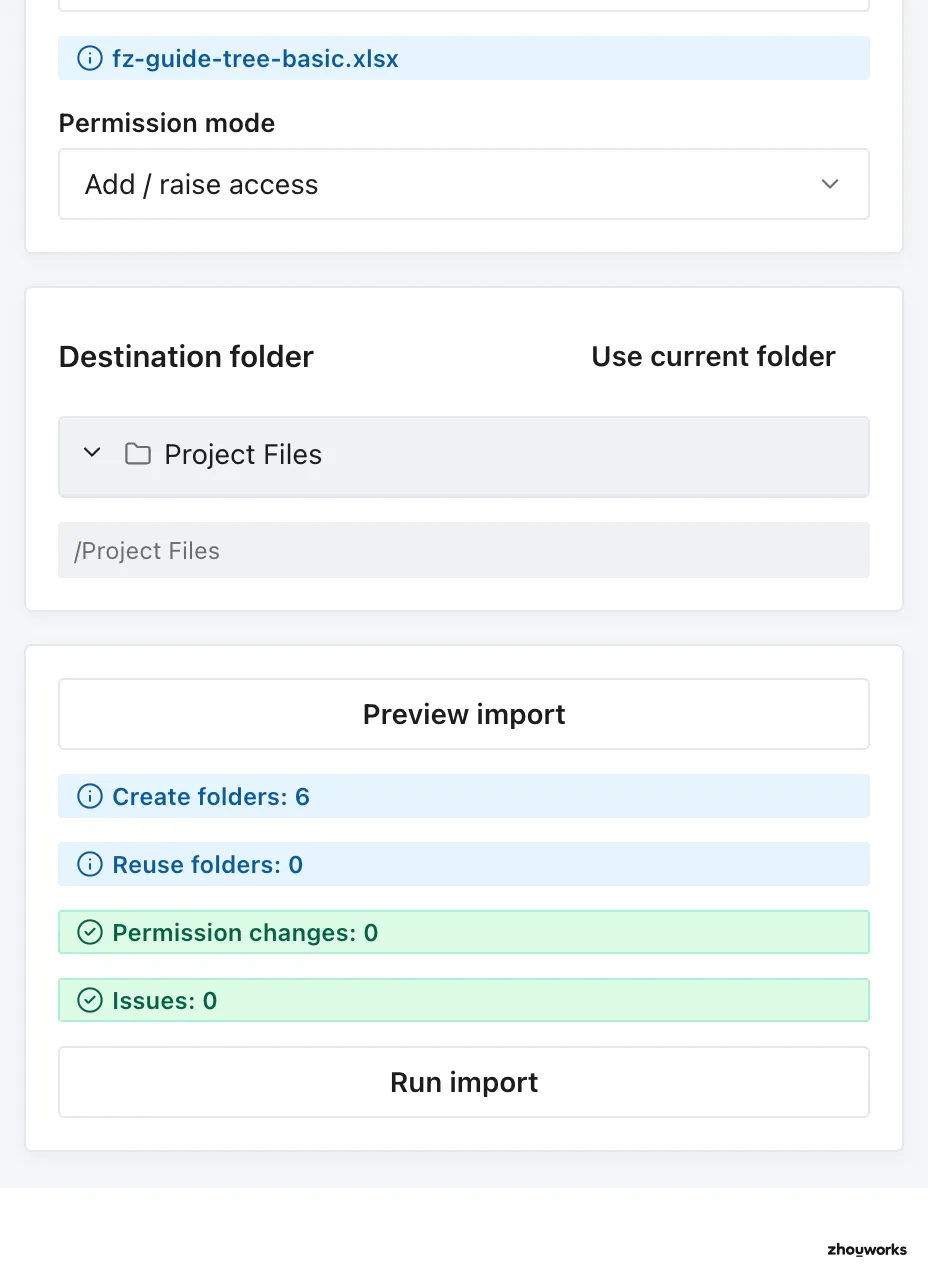
The corrected fixture produces a fresh preview with 6 folders to create and 0 issues; this image proves preview state only, with no import write.
4. If the job already started
A Needs attention state means Flowzito cannot confirm whether the previous step finished as intended. Open Jobs and operation progress, review the issue and the project’s current state, then decide whether Continue or a new preview is appropriate.
For checkpoint behavior, see Continue a job from a checkpoint.