

When Autodesk Forma needs to be set up from a controlled structure, one Flowzito workbook can define both the folder hierarchy and its permissions matrix. The workflow reviews both before any write.
Quick read
- Permission subjects can be USER, ROLE, or COMPANY.
- USER uses an email address; ROLE and COMPANY must resolve uniquely in the project catalog.
- Add / raise access only adds or raises direct access.
- Replace direct access in workbook scope can remove direct permissions inside the workbook scope and requires an explicit acknowledgement.
- The preview must be free of blocking issues before the import can run.
1. Prepare the workbook
Download the template from Flowzito. Define folder paths with the Level columns and add permission rows using the catalog included in the workbook.
For USER entries, supply the email. ROLE and COMPANY names need to resolve to one project subject; ambiguous or unknown values should be fixed before confirmation.
2. Choose the permission mode
Add / raise access
Use this when the workbook only adds or raises access. For example, if a Role currently has View and the workbook requests Edit, Add/raise can raise it to Edit. It will not lower a higher existing direct permission.
Replace direct access in workbook scope
Use this when the workbook is the intended source of truth for direct access in the folders it covers. For example, if a folder row keeps only Role A and Role B, Replace can remove other direct assignments inside that reviewed scope. Flowzito asks for explicit acknowledgement and still protects Manage/Project Admin.
Replace does not reset the whole project; it only affects folders and subjects covered by the reviewed workbook plan.
3. Treat the preview as a change set
Review folders to create or reuse and the planned Permission changes. Blocking conditions include a requested level below inherited access, a downgrade attempted in Add mode, protected Manage access, permission actions that cannot be mapped safely, and ambiguous folder or subject matches.
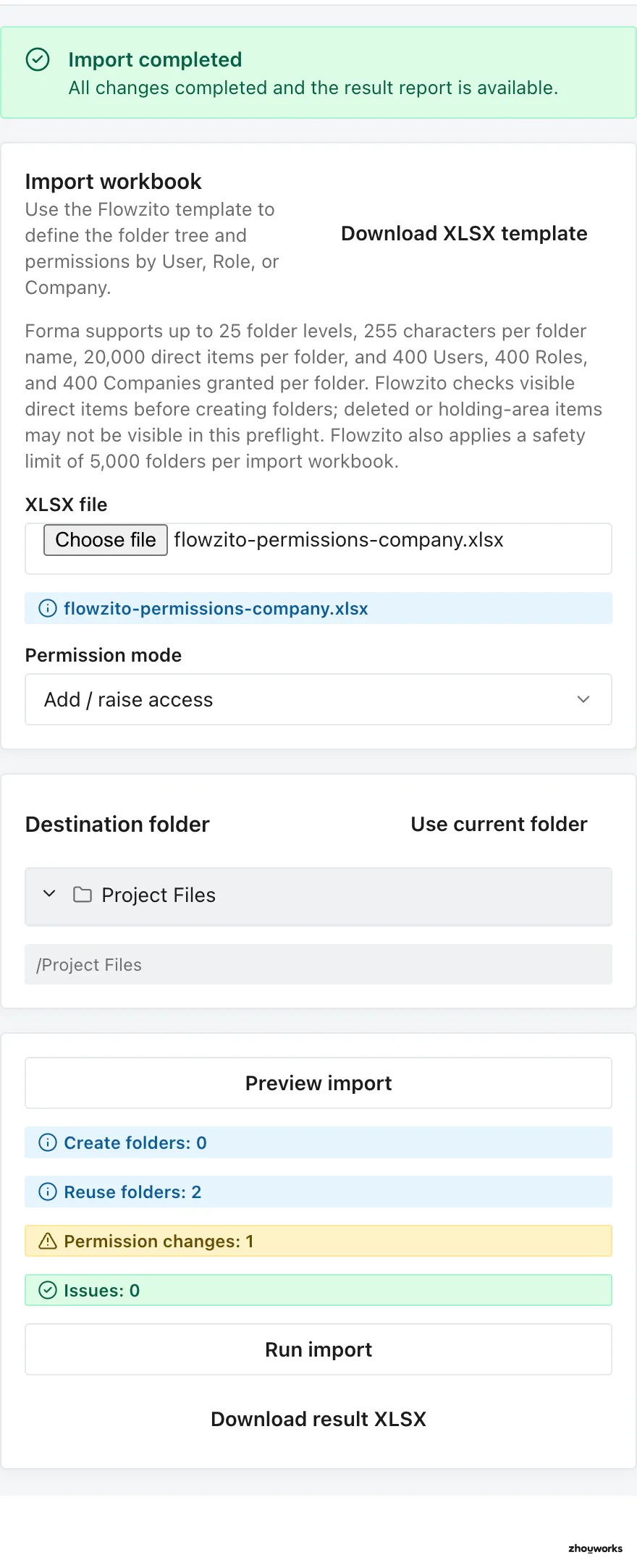
Real FZ-Test Project run: 0 folders created, 2 reused, 1 permission change, 0 issues, and Import completed.
4. Confirm and verify
Run the import only with a clean preview on the correct project. Confirm the reviewed operation count, then let the job finish or stop at a safe boundary if the session becomes invalid.
Afterward, inspect a representative folder with Folder permissions. For one person's effective access, use User Permission Inspector.
If the preview becomes stale
When project permissions or folders change after preview, Flowzito requires a new preview. Rebuild the plan from the current project state before applying it.