

In Autodesk Forma Data Management, a Review concerns project files already stored and versioned in Files. A person selects those files for an approval workflow; they do not need to build a separate attachment repository inside each review item. A completed approval is also not, by itself, a contractual instruction to use the document on site.
Consider the fictional Riverside Palace. Its structural designer submits a level-three drawing for the supervisor to check. An authorized representative may then approve it. The contractor needs an unmistakable record of which drawing was actually issued for construction.
Walk through a Review in the product
Use a sample file and a test workflow. In Files, select the intended version and submit it to a Review. Check the workflow and participant list before submitting. The assigned Reviewer opens Reviews, inspects the markup and comments, and completes their step. The designated Approver records the decision allowed by the workflow.
| Capture/checkpoint | Evidence |
|---|---|
| Initiator submission | Filename, version, workflow, assignees |
| Reviewer action | Comments/markup tied to the submitted version and step status |
| Approver action | Per-file decision, time and acting user |
| Send back / new round | Prior round retains its version; Initiator updates the selected version only in a subsequent round when supported |
When an expected action is absent, verify participant role and workflow configuration before drawing conclusions. Source: Autodesk Help — Start a Review.
Separate the file, decision and issue
| Element | Core responsibility | Project example |
|---|---|---|
| Files | Store the source document, its versions and attributes | Controlled structural drawing in a submission folder |
| Reviews | Route the selected document for checking and record outcomes | Supervisor comments, authorized approver decides |
| Issue / Transmittal | Communicate a defined set of documents to recipients for a specified purpose | Released construction drawing sent to contractor |
Autodesk's Submit for Review guidance starts with selecting documents in Files; Create a Review likewise selects stored project files. Any extra references in the review are context, not a substitute for the files being judged.
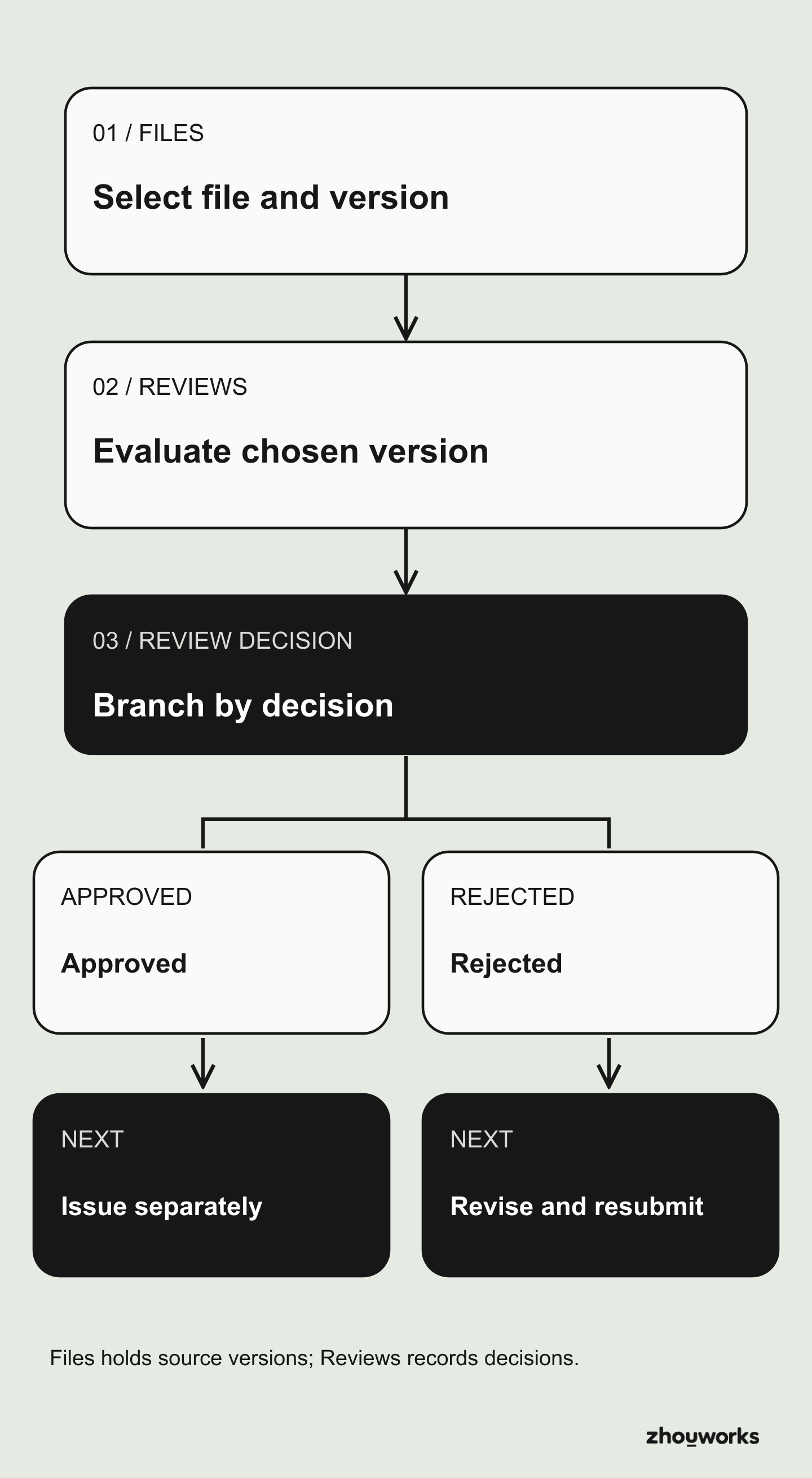
Files manages the versioned source; Reviews records checks and decisions on the selected document. A controlled issue is a separate project action after an approval, where applicable.
Follow a review in four steps
Using Riverside Palace's structural drawing as an example:
| Step | Who? | Action |
|---|---|---|
| 1. Submit | Initiator (designer) | Select stored files, choose a workflow and submit. |
| 2. Check | Reviewer (supervisor) | Inspect the submitted version, add comments/markups and complete their step. |
| 3. Decide | Approver | Review feedback and record the configured decision. |
| 4. Act | Initiator / document control | Start a new round if changes are needed; otherwise check issue requirements. |
Configure the participants, stages, final authority and Send back to Initiator option before starting. Workflows can have multiple reviewers and steps; this example is not a mandatory template. See Autodesk's workflow settings.
Which version belongs to each round?
The submitted file version is fixed within the active review round. Updating Files does not silently replace what reviewers are assessing.
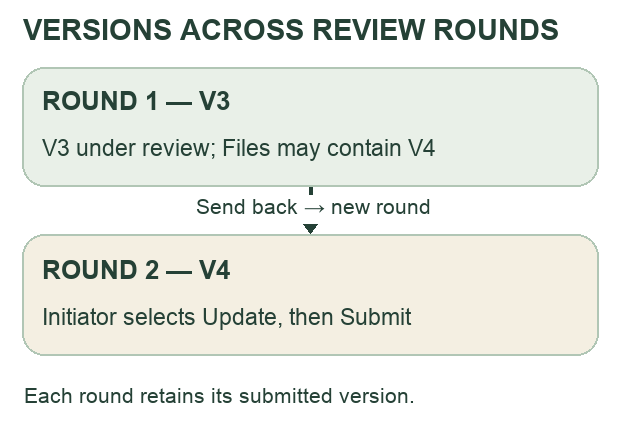
This fixes the version used by the review round, not necessarily the underlying file against all edits in Files. Comments tied to the previous version remain available in the previous round, rather than transferring automatically onto the updated version. See Autodesk Help — Send Review Back to Initiator and version vs. revision.
Approval does not equal a controlled construction issue
A file marked Approved has received the outcome of the configured review. A contractual construction issue may additionally require a particular revision, suitability designation, authorization and formal distribution to the right recipients.
Autodesk workflows can optionally copy approved files to a target folder, subject to settings. The approval workflow reference states that target folders for automatic copying must belong to the same top-level folder as the source. Plan the folder structure with that constraint in mind, rather than assuming any Approved file will move anywhere in the hierarchy.
Autodesk also documents transmittals created from closed reviews under applicable conditions. Review decision, copying a file, and issuing a package are distinct controls.
Distinguish Reviews, Transmittals and Build Submittals
A Review evaluates files selected from Files; a Transmittal records sending a package to recipients. Autodesk — Create Transmittal documents file permission requirements that should be tested with a real recipient and sender. Submittals in Forma Build are a separate construction workflow; a Submittal status should not be treated as proof that a drawing was issued for construction. An RFI can reference a location on a Sheet, but that reference is not an issue authorization.
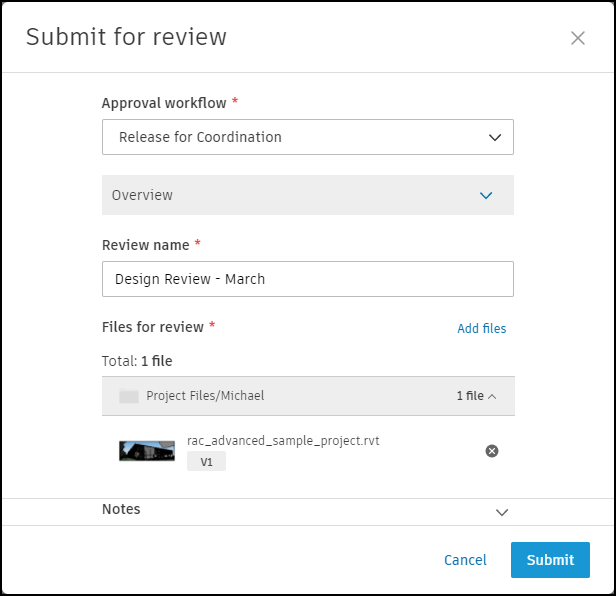
Image source: Autodesk Help.
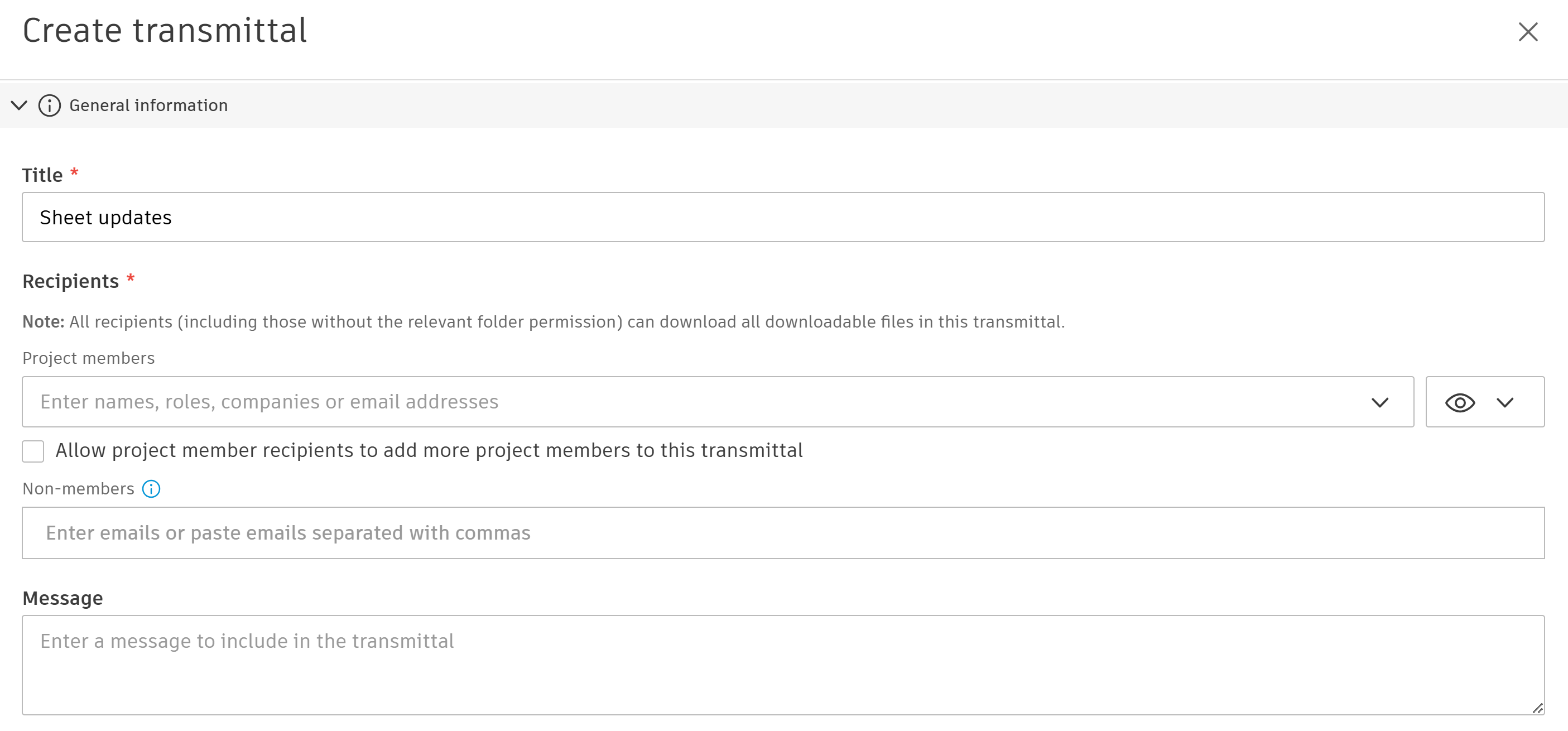
Image source: Autodesk Help.
Test the workflow with a small package
Prepare four pilot cases: a valid submission that is approved; a rejected submission; a submission with missing naming attributes; and a newer version uploaded to Files during an active round (verify it remains on the prior version until resubmitted in a new round). Record the participant, exact file/version, decision, comments, any copy, and whether a transmittal or controlled issue follows.
Verify each test using ordinary project accounts. Files permissions and Review workflow assignments both affect the user experience. Autodesk's Review and Approve guide describes file-level status and review outcomes.
A workflow is operational when the right person can identify and evaluate the right version, record a traceable decision, and pass a controlled issue to its intended recipients—or route the file back for correction.
The final article provides a CDE acceptance and handover checklist built around these same scenarios.
Flowzito, a ZhouWorks extension supporting work with Autodesk Forma, is available at zhouworks.com/flowzito. The Riverside Palace scenario is fictional; the project contract governs approval and issue responsibilities.
Log one review-to-issue trial
ZhouWorks practice template: copy this table to fill it in, using non-sensitive samples. Outcomes depend on project configuration.
| Trial checkpoint | Evidence to record | Result |
|---|---|---|
| Author submits sample | File, version and submitter | … |
| Reviewer responds | Decision and version reviewed | … |
| Authorized issuer releases | Correct Published file and access | … |
| Recipient opens issued file | Member accesses permitted version | … |
Keep reading
BIM CDE7 min read
WIP, Shared and Published in Forma: Two Practical Folder Models
Choose a Forma folder design from the way project teams exchange information, with two Shared models and version-control examples.
BIM CDE6 min read
Forma Folder Permissions: Roles, Companies, Users and Six Access Levels
Use a practical permissions matrix to control who sees, uploads, edits and manages construction project documents in Forma.